Welcome to WaiterOne
Before diving into the setup, here is a quick look at what WaiterOne can do for your venue:
| Core Feature | How It Helps Your Business |
|---|---|
| Tableside Ordering | Staff use iPhones/iPods (WaiterOne Remote) to send orders directly to the kitchen from the table. |
| Smart Modifiers | Automatically prompts staff to ask for steak temperatures or drink add-ons, reducing mistakes. |
| Offline Reliability | The main iPad acts as your local server. If your internet goes down, your POS stays up. |
| Cloud Analytics | The WaiterOne Dashboard lets you track live sales, inventory, and reports from anywhere in the world. |
| Flexible Pricing | Set up Happy Hour prices, VIP discounts, or open-priced daily market specials effortlessly. |
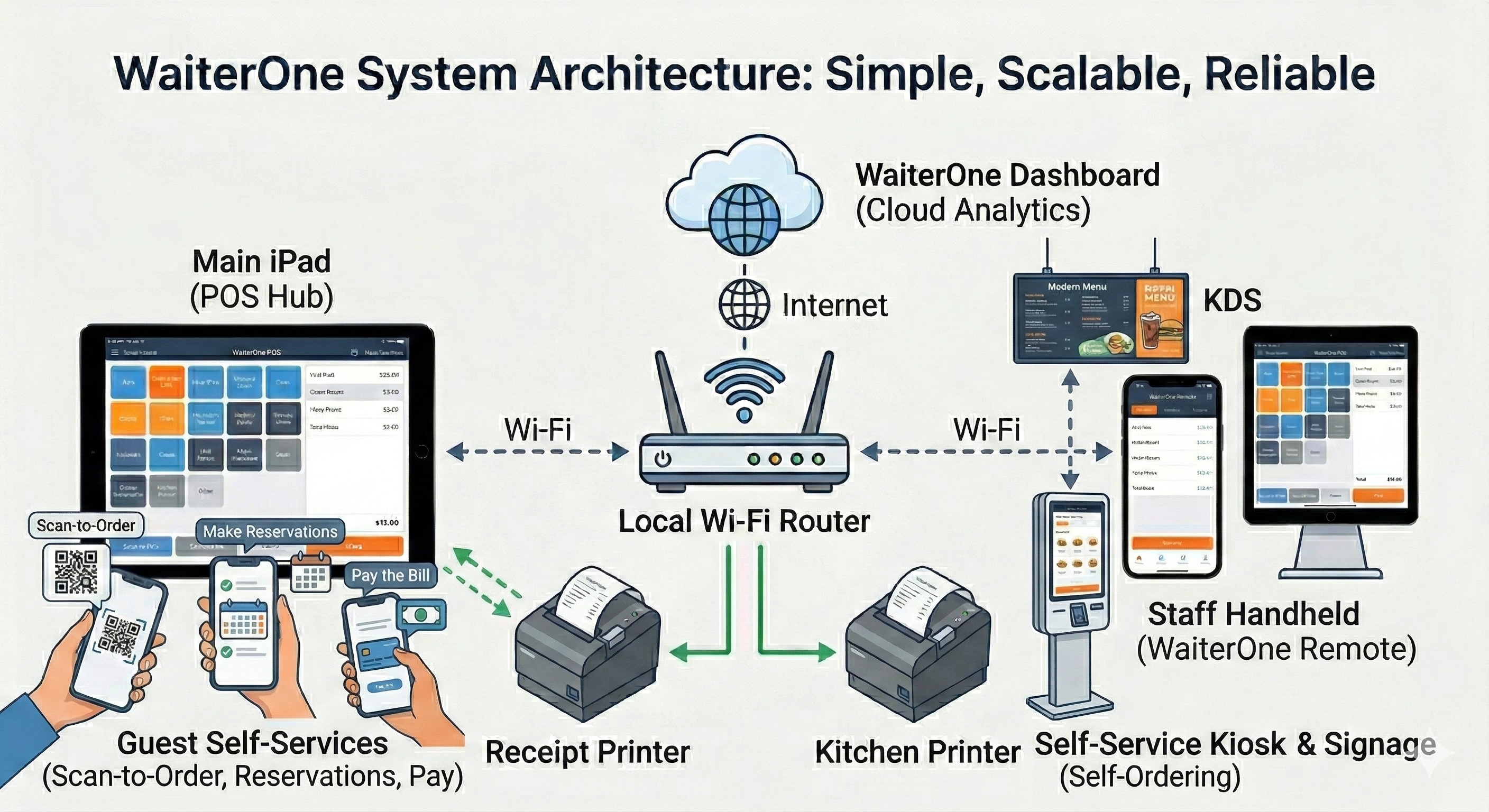
System Architecture Overview
Understanding how WaiterOne connects is the first step. The system is incredibly scalable, allowing you to add KDS screens, self-service kiosks, and digital signage all on the same local network.
1. Hardware & Network Setup
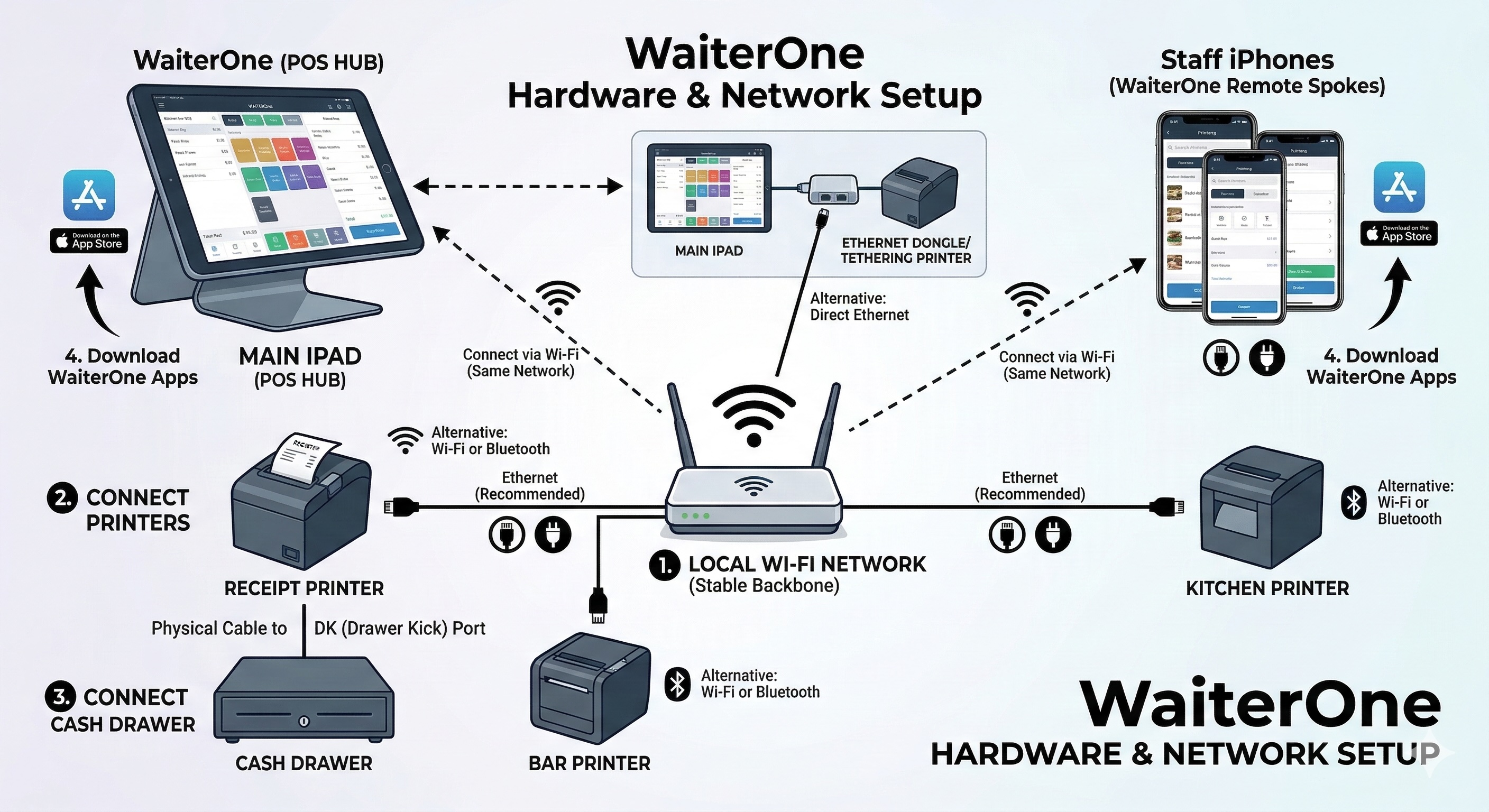
For WaiterOne to operate perfectly, your local network must be stable. The main iPad acts as the "Hub," while printers and staff iPhones act as the "Spokes."
- Connect to Wi-Fi: Ensure your main iPad and all remote devices are connected to the exact same local Wi-Fi network. You can also connect your main iPad directly via Ethernet if you use a dongle or a supported printer with network tethering.
- Connect Printers: Plug your receipt, kitchen, and bar printers directly into your Wi-Fi router using an Ethernet cable. You can also connect compatible printers via Wi-Fi or Bluetooth.
- Connect the Cash Drawer: Plug your cash drawer into the receipt printer’s DK (Drawer Kick) port.
- Download the Apps: Install WaiterOne on your main iPad and WaiterOne Remote on your staff devices from the App Store.
2. Setting Up Your Back Office (Main iPad)
To access the main menu in WaiterOne, simply click on the logo in the lower-left corner of the app. Depending on your WaiterOne version and your user rights, different menu items will be available or activated.
All major configuration happens directly on your main iPad under the Settings or Data tabs.
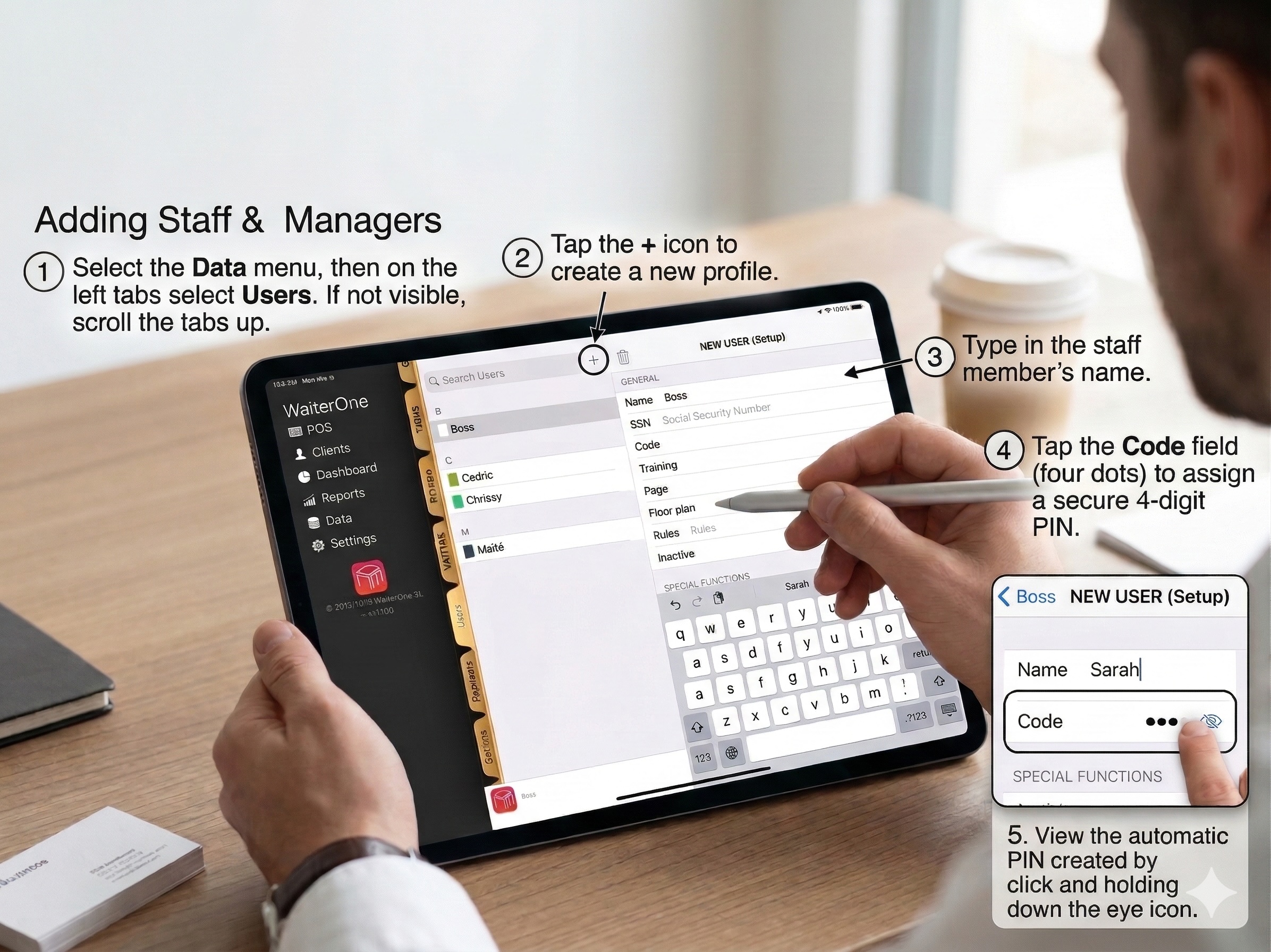
Adding Staff & Managers
- Select the Data menu, then on the left tabs select Users. If not visible, scroll the tabs up.
- Tap the + icon to create a new profile.
- Type in the staff member's name.
- Tap the Code field (four dots) to assign a secure 4-digit PIN. You can also view the automatic PIN created by clicking and holding down the eye icon.
Recovering a Forgotten User Code
If you cannot log in because you have forgotten a user code:
- On the PIN login screen, enter an incorrect user code more than three times. WaiterOne creates the recovery file after the fourth failed attempt.
- After each failed attempt, wait for the retry delay to finish before entering the next code.
- Connect the iPad to your computer and open WaiterOne's shared Files in Finder on Mac or iTunes on Windows.
- Copy
passwords.txtto the computer and open it. It contains all user codes. Use the listed users and codes to regain access.
Automatic cleanup: After a successful login, WaiterOne removes
passwords.txt. Delete any copy saved to your Mac or PC after regaining access.
User Permissions & Roles
You can customize what each user is allowed to do by toggling specific security settings on their profile:
| Setting | Permission Details |
|---|---|
| Boss | Grants complete control over the entire POS system and settings. |
| Consult Sales | Allows the user to view the dashboard and sales results. |
| Retour/Void | Enables the user to cancel or void items from a ticket. |
| On the House | Permits the user to give items away for free. |
| Drawer [1 & 2] | Gives the user the ability to pop open the primary or secondary cash register drawer. |
| Close / Delete Table | Allows the user to finalize or completely remove a table tab. |
| Training | Extremely useful for new hires! Enabling this toggle lets the user practice taking orders and printing real dockets, but completely exempts their sales from your daily totals. |
Manager Login with Face ID or Touch ID
The login keypad can use the biometric security available on the iPad. The key to the left of 0 automatically shows the correct Face ID or Touch ID symbol when biometric manager login is available.
- On the Unlock WaiterOne screen, tap the Face ID or Touch ID key.
- Authenticate using the iPad's camera or fingerprint sensor.
- If more than one manager account is available, select the manager who is logging in.
PIN login remains available: Staff and managers can always enter their user code on the keypad. If no biometric key appears, confirm that Face ID or Touch ID is configured in the iPad's Settings and that WaiterOne has an active manager account.
Database damage detected
Available in WaiterOne 1.8.24 or later. This warning means some data may not be read or saved reliably. Contact WaiterOne support as soon as possible.
- Keep the current data. Do not delete data or restore an older backup unless support tells you to.
- After closing for the day, send a current database backup as instructed by support.
- You may dismiss the warning. The message remains in Control Center so you can return to it.
Important: A later successful database check does not prove that data from operations that failed earlier was recovered. Keep following support guidance.
Archive older sales and reduce the database size
Sales archive lets you move older sale and payment records into a password-protected
.waiterone-sales file. You can browse that file without changing WaiterOne, remove eligible
archived sales from the working database, and later restore those sales to the same database. This is
useful when years of sales have made the working database very large.
A sales archive is not a complete database backup, a CSV export, or a fiscal, X, or Z report. Keep using the normal full-database backup for complete recovery. Sales removed with Settings > Data > Reset > Delete results before a date cannot be restored through Sales archive.
Prepare before service maintenance:
- Sign in as a manager and make a separate full-database backup.
- Finish service, close every table, order, payment, and cash session, and wait for all pending cloud uploads to finish.
- Complete both the financial and user Z reports for the period you want to archive.
- Turn off Remote and Kiosk in Settings. WaiterOne does not turn them off automatically.
- Keep WaiterOne open and do not use connected devices until the operation finishes. Make sure the iPad and the selected Files location have enough free space.
Create and verify an archive
- Open Settings > Data > Sales archive.
- Under Sales before, choose the first business date to keep. The cutoff uses your configured Start of new day, including its hour and minute. For example, with a 06:00 start, selecting 1 August includes sales and payments before 1 August at 06:00; records at or after that time remain. Check the exact cutoff shown beneath the date. The entire current calendar month stays in the working database, so the latest selectable date may be the previous month’s last day. Existing archives keep their original cutoff.
- Enter the same strong, unique Archive password twice. It must contain at least 12 characters and no more than 128 UTF-8 bytes. Store it separately because WaiterOne cannot recover it.
- Tap Create encrypted archive. This creates and verifies the archive, but it does not remove any sales.
- Tap Save archive to Files and choose a secure location. Prefer a location outside the iPad. A copy stored only on the same iPad is not protection against loss of that device.
- Wait while WaiterOne reads the saved file back and verifies it. Leave the saved file at that Files location until removal is complete.
- Use Browse archive if you want to inspect the saved tickets before removing anything.
Choose the cutoff carefully: If the date divides a ticket or a financial or user Z period, WaiterOne refuses creation and asks for a date after the complete period. A completed archive can remain read-only when removal would affect a saved cash-session report, remove the newest record numbers, or conflict with fiscal retention. Follow the specific message, which may recommend an earlier cutoff. Do not disable fiscal settings to bypass a restriction.
Remove archived sales and reclaim space
- After the separate Files copy is verified, tap Delete archived sales. This action is available only when the selected records pass all safety checks.
- Enter the archive password again, read both confirmation messages, and confirm only if the record scope is correct. WaiterOne verifies the saved archive and working database again before removal.
- Wait for the success message. Normal reports and customer history then cover only the sales that remain in the working database. Logs, fiscal records, stock, product setup, and cash-session records are not removed.
- Tap Reclaim database space, then Reclaim space, to shrink the working database file. This separate step can take a long time and needs considerable temporary free space. If it fails, the completed sales removal is not undone, and you can retry this step later.
Keep the archive: Keep the saved .waiterone-sales file and its
password for as long as you need the history. The file contains confidential business data. Deleting the
saved file or losing its password prevents future browsing and restoration.
Browse a saved archive
Tap Open archive from Files, select a .waiterone-sales file, and enter its
password. The archive opens read-only. You can page through stored tickets, search for an exact ticket
number, and inspect stored sale lines and payments. Browsing does not put the records back into live
reports and does not charge, print, upload, or change stock.
Restore archived sales
- Make a current full-database backup and complete the same maintenance preparation described above.
- In Settings > Data > Sales archive, tap Restore sales from Files and select the original saved archive.
- Enter the archive password. WaiterOne verifies the file and shows the number of sale lines and payment records before anything is changed.
- Read the restoration warning, then tap Restore sales. Restoration works only with the same working database that created the archive and removed those sales through Sales archive.
- Wait for completion. The restored history returns to normal reports and customer history, and the working database grows again. The saved archive remains unchanged. Reopen a report or customer page if it was already on screen so it reloads the restored totals.
WaiterOne restores the original sale and payment records without repeating payments, stock movements, printing, or cloud uploads. Existing records are never overwritten. If records conflict, only part of the archive is already present, the database structure is incompatible, or a newer fiscal or cash-session restriction applies, restoration stops without making a partial change. Restoring the same complete archive again does not create duplicates.
If an action is unavailable or stops
- Create, delete, or restore is blocked: Check manager access, open orders, active payments, cash sessions, pending uploads, Remote, Kiosk, free storage, and the warning shown by WaiterOne.
- Deletion or restoration is unavailable for fiscal data: Keep the archive for read-only access and follow the retention requirements for your fiscal setup.
- An archive does not open: Confirm that you selected the correct
.waiterone-salesfile and entered its original password. A damaged file cannot be repaired by WaiterOne. - Restoration is refused: Use the original working database and an unchanged saved archive. Do not try to combine sales from another WaiterOne database.
- Space reclamation fails: Free additional storage and retry Reclaim database space. First check the status message because sales removal may already have completed successfully.
Safely Resetting Data
Reset actions are available under Settings > Data > Reset. Because reset actions permanently remove information, WaiterOne shows a final confirmation screen before continuing.
Delete older results while keeping newer results
Use Delete results before a date when you want to remove historical sales without resetting the whole system.
- Make a backup, then open Settings > Data > Reset and tap Delete results before a date.
- Select the first business day you want to keep, then tap Next.
- Review the exact cutoff shown in the warning. Its time comes from the configured Start of new day setting.
- Continue to the confirmation screen and confirm the reset as described below.
WaiterOne permanently removes sales results before the exact cutoff. Results at or after the cutoff, Work In and Work Out attendance records, open tables, ticket counters, settings, and product setup remain unchanged.
- Read the warning and locate the confirmation number shown on screen.
- Enter that number with the keypad inside the confirmation screen. The iPad keyboard is not required.
- Alternatively, tap the Face ID or Touch ID key when it is available and authenticate on the iPad.
- The red reset button becomes available only after the number or biometric confirmation is accepted.
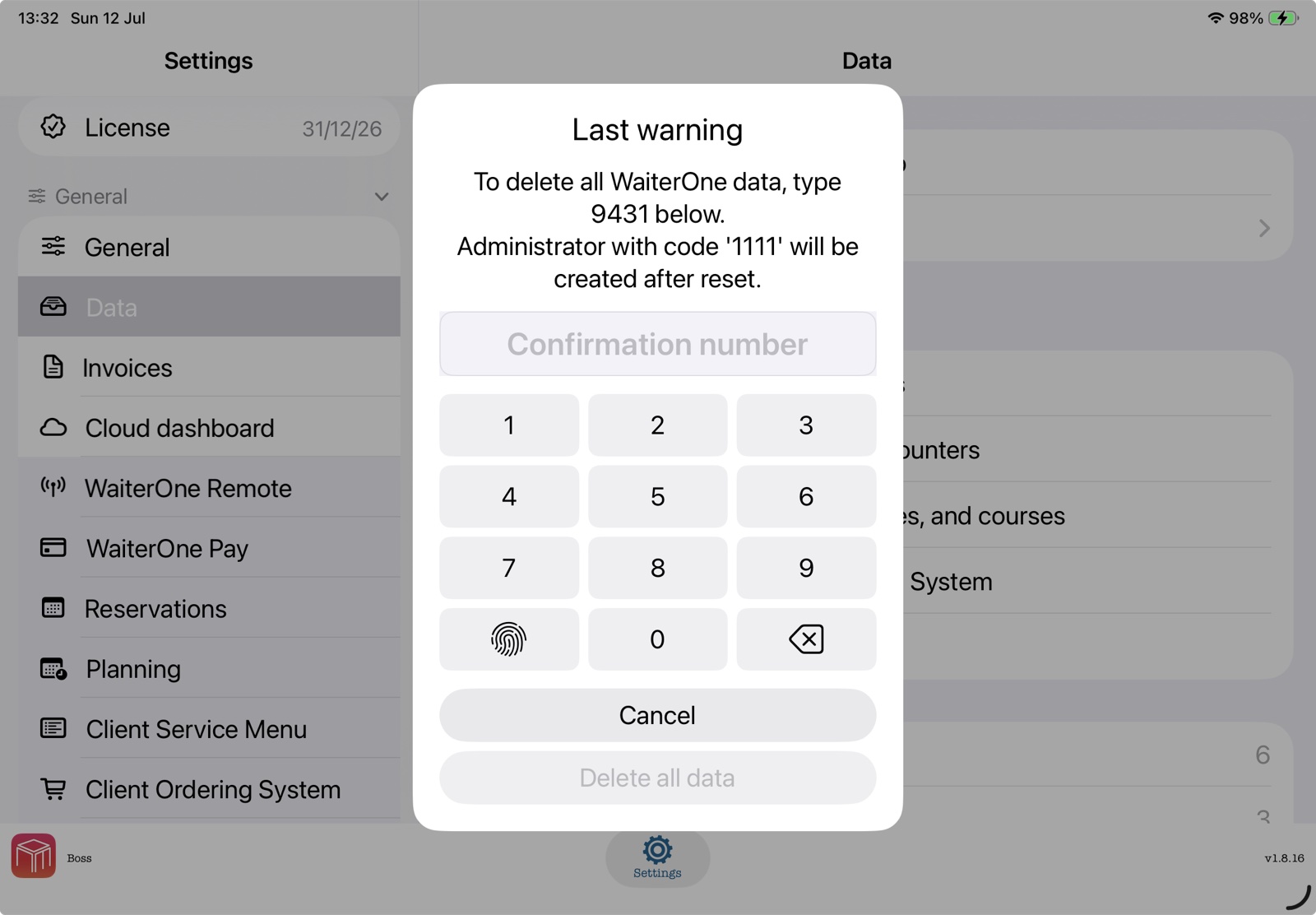
Make a backup first: Reset actions cannot be undone. A complete data reset
removes all WaiterOne data and creates a new administrator with code 1111. Change this
default code immediately after signing in again.
Time Clock (Work In / Work Out / Break)
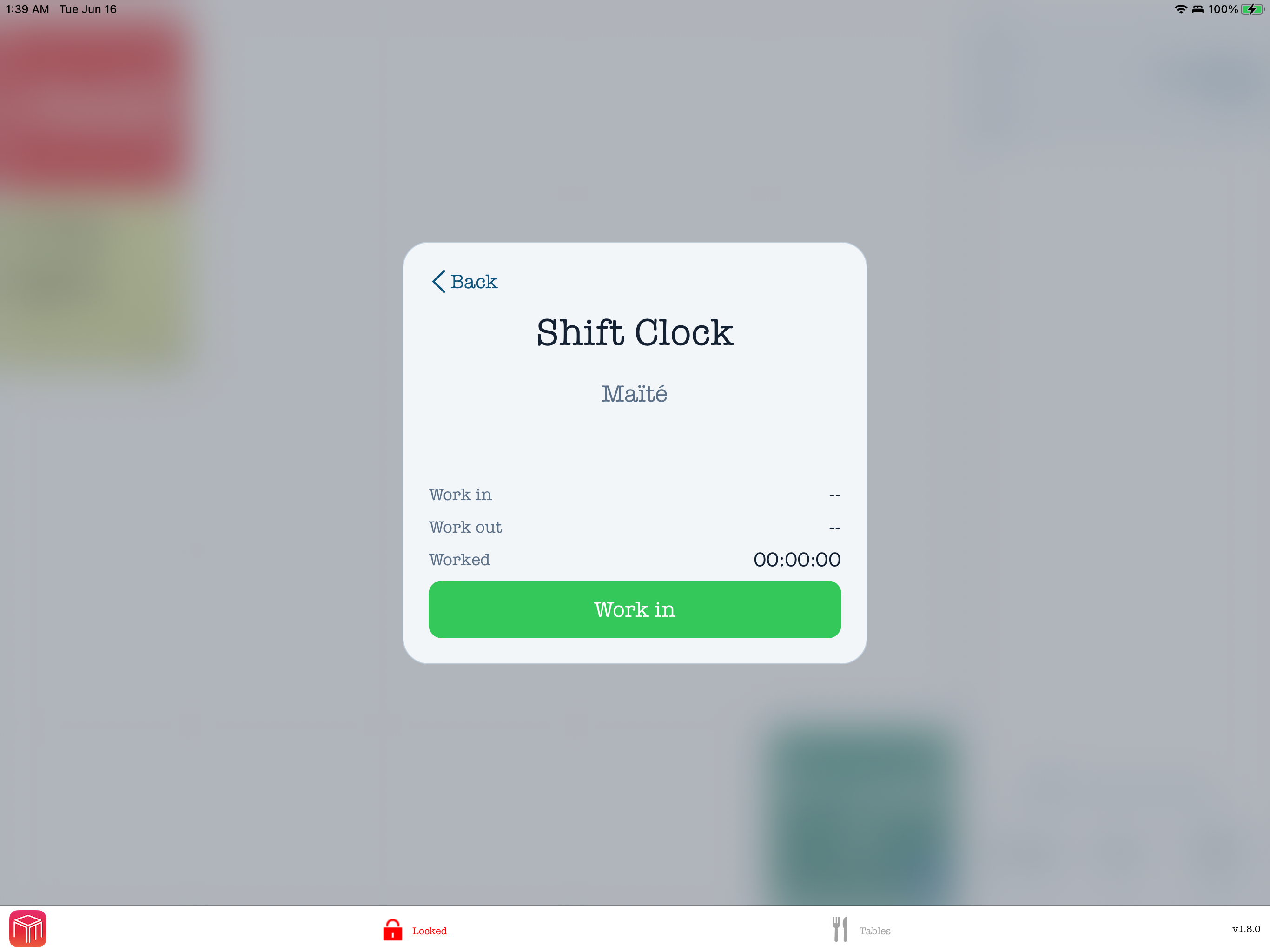
WaiterOne can track staff hours seamlessly from the PIN screen. When a staff member starts the day, goes on a break, returns from a break, or finishes the shift, the Shift Clock shows the next available action for that user.
Manager override for strict planning: When planning with Enforce blocks Work In on the local POS, an active manager sees the schedule warning and can tap Continue to clock in or Cancel to stop. An accepted override is recorded for audit. This override applies only to clock-in / Work In. Ordinary staff, breaks, Remote, and all other attendance actions remain subject to planning enforcement.
| Action | How it works |
|---|---|
| Start shift | The staff member enters their PIN and taps Work in. WaiterOne starts counting worked time. |
| Pause / Break | Open the Shift Clock and tap the break or pause action. The shift stays open, but break time is tracked separately from worked time. |
| Resume work | After the break, return to the Shift Clock and tap the available work/resume action to continue the same shift. |
| Stop shift | At the end of the shift, tap Work out. WaiterOne stores the clock-out time and total worked time. |
Disable per user: Go to Data > Users, open the staff member, and turn off the user's time clock / shift clock option. That user can then log in normally without being asked to work in, work out, or register breaks.
Disable for all users: Go to Settings > General > Attendance and turn off Ask for time registration at login. Staff can still use Time Registration manually; the per-user Attendance required setting is hidden while this global option is off.
Connecting Printers
WaiterOne supports unlimited printers with no extra fees.
By default, 3 virtual printers are automatically configured (e.g., for the bar, for the kitchen, for the receipt). This doesn't mean you must have 3 physical printers; rather, it allows for different types of tickets and settings to be printed. When using different virtual printers, their own numbering sequence will be kept.
- Go to Data > Printers.
- Tap Add or select an existing virtual printer.
- Change the Type Printer accordingly.
- Change the Host to connect your printer:
- Ethernet/Wi-Fi: Enter the IP address of the printer.
- Bluetooth: Enter
BT: - Direct iPad Connection: Enter
USB:
Find an Epson or Star printer: Select Epson ePOS SDK, Star Raster Mode or StarPRNT Command Mode as the printer type, then tap the radio-wave button beside Host. WaiterOne searches for available printers from the selected manufacturer over the local network, Bluetooth and USB. Select a result to save its exact connection target in Host and leave that target unchanged. For a Star printer, choose the mode required by your model; discovery preserves it but cannot verify it, so run a test print. If no printer is found, Host remains unchanged. Check the connection and search again, or enter the target manually.
Bixolon SRP-Q300: Bluetooth and Ethernet
These instructions apply to WaiterOne versions that offer Bixolon under Type printer. They cover the SRP-Q300; Bluetooth requires an iOS-compatible printer.
- Bluetooth: Pair the printer in the iPad's Bluetooth settings first. The default PIN is
0000, unless it has been changed. In WaiterOne, go to Data > Printers, select your printer, and choose Bixolon under Type printer. Tap the radio-wave search button beside Host and select the paired printer. This saves its exactBT:target in Host; keep that target unchanged. If it is not listed, check the iPad's Bluetooth connection and search again. - Ethernet: Connect the printer and iPad to the same local network. Choose Bixolon as the printer type and enter the printer's IP address in Host. In the printer's Settings, use Port
9100, unless your printer is configured for another port. - Test: Tap the printer test button beside Host. Check the printed text, accents, QR code scanning, paper cutting, and the cash drawer if one is connected before using the printer during service.
Secure printing and red printing are not available with the Bixolon printer type. Automatic retry and recovery are off by default; see Automatic printer retry and recovery below.
Epson and Bixolon displays connected to a bill printer
These instructions apply to WaiterOne versions with the Bixolon BCD-3000 activation switch. This setup uses a two-line display attached to a printer. For a second tablet running the browser Customer Display, use the instructions below.
- Connect an Epson DM-D30 to a compatible Epson ePOS bill printer, or a Bixolon BCD-3000 to an iOS-compatible SRP-Q300 connected to this iPad over Bluetooth. For the Bixolon printer connection, follow SRP-Q300 setup above. These Bixolon display instructions cover Bluetooth.
- Configure the printer in Data > Printers, using Epson ePOS SDK or Bixolon as its type. Select it as a Bill printer in Settings > General.
- Open Settings > Add-ons > Customer display. Turn on the activation switch below the matching Epson or Bixolon logo. Enable both only if both displays are connected.
- Under Configuration, enter a short welcome message in Title. The same saved title is used by both enabled displays when the POS resets to its idle state. Each display has two lines of 20 characters; keep the title short.
During an order and payment
The display shows the item, quantity and price as products are added. Opening the payment-selection page or tapping Pay shows the amount due. Payment and change information follows as payment is entered. Check the total against the POS, including partly paid bills and cash rounding, before using the display during service.
If the Bixolon display stays blank or shows old text
- Check the BCD-3000 cable, printer power and the iPad's Bluetooth connection. Confirm the SRP-Q300 is configured as a Bixolon bill printer and keep its discovered
BT:target unchanged. - If Customer display unavailable appears in Control Center, restore the connection and trigger another display update, for example by opening payment selection. The warning clears when the printer accepts an update; check the physical display to confirm the text is visible.
- There is no separate display-printer selector. If several Bixolon Bluetooth bill printers are configured, the first matching printer is used. Check which attached display receives the update.
On the BCD-3000, long text is shortened, unsupported characters may be replaced, and the euro symbol is shown as EUR. Test your welcome message, product names, accents, payment total and change, and print a bill to verify both devices before service. Turn off the matching activation switch to stop display updates.
Logos on bills and order tickets
In versions that include Logos in printer settings, you can configure two logos for each printer. Go to Data > Printers, select the printer and open Logos.
- Choose Logo 1 or Logo 2. Tap Choose Image or the image preview. Select Photos, Crop Photo or Files. Crop Photo lets you choose and crop a photo before importing it.
- Check the black-and-white preview. Adjust Image Width and Darkness. New logo slots start at 512 dots; saved widths stay unchanged. Choose a width that fits your printer's printable area, which can differ between models even with the same paper size.
- Under Source, choose how to print the logo. Importing an image selects Image on iPad. Use Test Print to check the selected source on paper.
- Add
<logo>for Logo 1 or<logo2>for Logo 2 to the printer's header or footer. For a logo at the start of a bill, you can also use a general bill header, such as Header 1. Keep intentional blank lines only where you want extra spacing.
Choose the logo source
- Image on iPad: sends the image with each ticket. No upload to printer memory is needed.
- Stored in printer: prints a logo already saved in the printer's non-volatile (NV) memory, which retains images when the printer is switched off. This is the default source and preserves the use of logos loaded with a printer utility, including Bixolon utility logos.
The preview always shows the image saved on this iPad. It cannot show what is stored in the physical printer. Changing the local image, width or darkness does not change a stored printer logo until you upload it again.
| Printer mode | Image on iPad | Stored logo and upload |
|---|---|---|
| ESC/POS, Epson ePOS SDK, StarPRNT Command Mode, Bixolon | Supported | Supported on compatible models. Check the printer's NV graphics support; generic ESC/POS printers need Epson-compatible NV commands. |
| Star Raster Mode | Supported | Use Image on iPad. Stored-logo recall and NV upload are unavailable in this mode. |
Upload a logo to printer memory
Do this only when nobody is printing to the printer. Keep it powered on while saving; it may restart. Keep copies of any stored images before replacing them.
- Bixolon: an upload replaces all logos in printer memory. Only the images selected for Logo 1 and Logo 2 on this iPad remain. Prepare both images first if you need both.
- ESC/POS and Epson ePOS SDK: the selected logo is replaced. Older numbered logos saved with a printer utility may also be removed.
- StarPRNT: the selected logo is replaced; the printer must support StarPRNT NV graphics.
- Choose the local image, then tap Upload to Printer. Read the destination and replacement warning, then confirm Upload and Replace.
- Wait until the printer has finished saving and restarting before testing or printing tickets. A message that the command was sent does not prove that the logo was saved correctly.
- Tap Test Uploaded Logo and inspect the paper. Choose Logo Printed Correctly only when the expected logo appears correctly. This selects Stored in printer for that logo. After a Bixolon upload, verify each uploaded logo.
- If the result is missing or wrong, choose Not Yet. You can choose Later to defer verification. Check the printer and any message in Control Center before trying again.
Cancel Upload Verification appears while an upload still needs checking. It clears the pending checks for both logos. It does not undo the upload, restore overwritten logos or change the selected sources. Check the printer before resuming ticket printing.
Automatic printer retry and recovery
In versions that include this option, go to Data > Printers, select a printer, open Settings, and find Automatic printer retry and recovery. The option is stored separately for each printer on this iPad and is off by default. For example, you can leave retry and recovery off for the kitchen printer and turn it on for the bar printer after testing. Choose per printer based on its connection, compatibility, and your own tests.
- Off: There are no automatic delivery retries for this printer. Its previously saved ESC/POS and Bixolon jobs remain paused. Printing already in progress may finish.
- On, ESC/POS: Eligible jobs that are known not to have been sent are saved and retried, including after restarting WaiterOne. This includes secure Epson ESC/POS printing. Recovery is limited to six attempts or ten minutes from when the job was queued, whichever comes first.
- On, Bixolon: In versions with the Bixolon printer type, eligible Bluetooth and Ethernet jobs known not to have been sent are saved and retried, including after restarting WaiterOne. Recovery is limited to six attempts in total, including the first attempt, or ten minutes from when the job was queued, whichever comes first. Jobs with an unknown delivery outcome are never resent automatically.
- On, Epson ePOS and Star: Enables limited retries when an Epson send is rejected as busy or a Star connection cannot be opened. These jobs are not saved for recovery after restarting WaiterOne.
- AirPrint, KDS, and Email: This option has no effect, and its switch is disabled for these printer types.
Before enabling recovery or reprinting: Check the physical order slips and receipts and review messages in Control Center. Enabling recovery resumes eligible, unexpired saved jobs for the selected printer, so confirm that staff did not already print them manually. Only jobs safely known not to have been sent are retried automatically; jobs with an unknown delivery outcome are not sent again automatically.
New printers and updates: The previous global switch does not automatically enable this option for any printer, and unidentified older jobs are not resent. A new or duplicated printer and printers from a restored database start with this option off. Check for a missing order slip or receipt before enabling recovery or reprinting.
Epson printer with TSE: TSE signing and the required coordination between TSE processing and printing remain active even when this option is off; they operate independently of automatic printer recovery.
Find a WaiterOne KDS screen: Update both WaiterOne and WaiterOne KDS to versions that support KDS search. Connect both devices to the same local network, allow Local Network access for both apps, and keep KDS open on the kitchen device.
- In WaiterOne, go to Data > Printers, then add or select the virtual printer for the kitchen screen.
- Choose WaiterOne KDS as the printer type and tap the radio-wave button beside Host.
- Wait for the results, then select the intended KDS screen by its name and address. WaiterOne saves the address in Host. Send a test order to confirm that you selected the correct kitchen screen.
Cancelling the search or finding no screens leaves Host unchanged. If nothing appears, check that KDS is open, both apps are updated, and both have local-network permission. Guest Wi-Fi or network isolation may prevent discovery. You can still enter the KDS address manually, including when using an older KDS version.
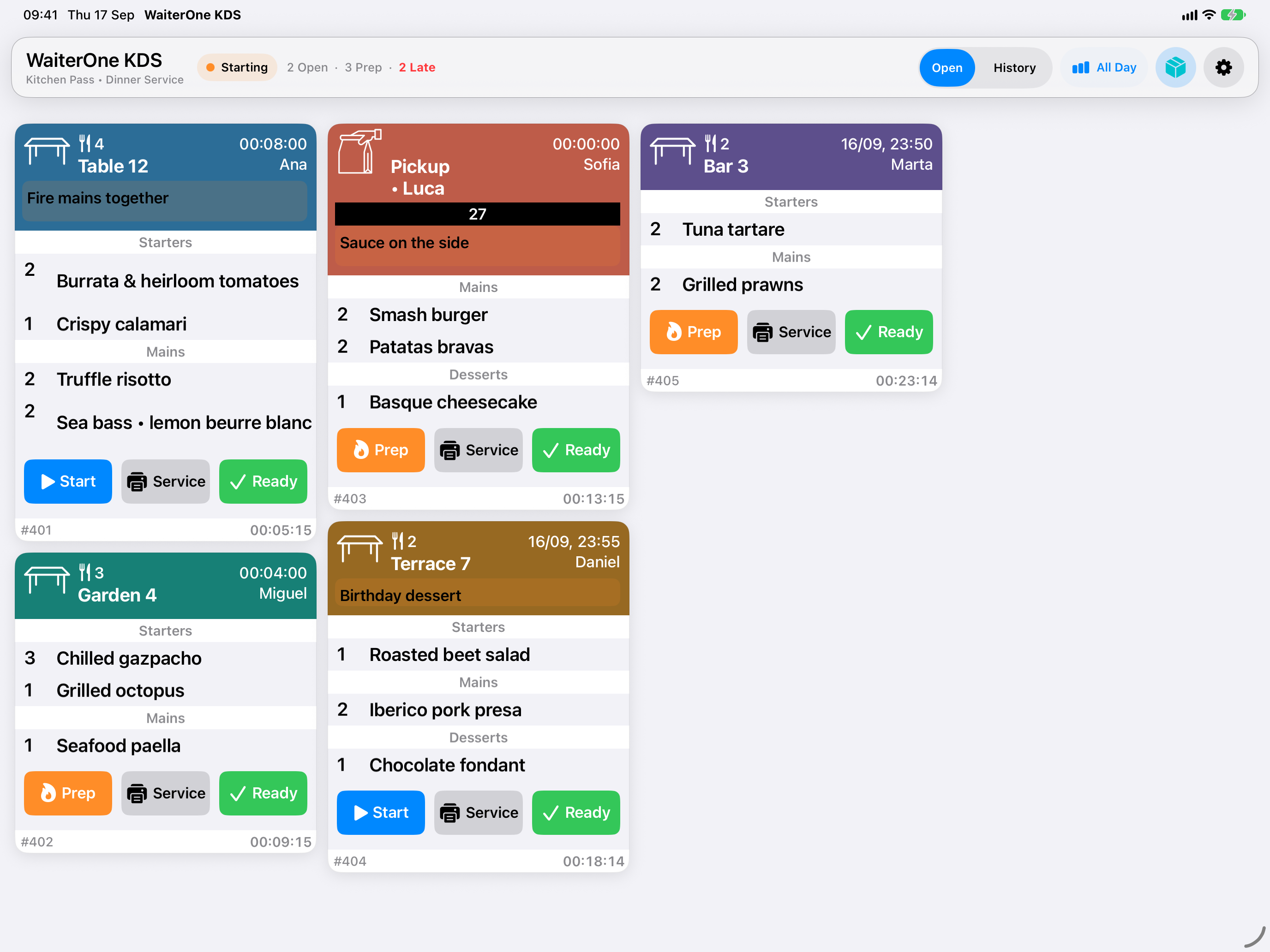
KDS (Kitchen Display System): A KDS can replace or complement kitchen and bar printers. Orders routed to a preparation station appear as digital tickets. Tap Start when preparation begins, Service at the handover point, and Ready when the ticket is complete.
The WaiterOne KDS printer destination above pushes order tickets to the kitchen screen. The stock connection is separate. In KDS, open Prep & Stock > Connection & staff, choose Find main iPad, select the correct main iPad, and enter the staff passcode. Tap Done, then Connect. KDS obtains the connection code automatically. Keep Remote socket communication enabled in WaiterOne and use a staff member with Receive deliveries permission.
In Prep & Stock, record the quantity made in the product's displayed stock unit. The confirmed quantity is added to availability; it does not replace the current quantity. Recording ten adds ten. The displayed availability already reflects order reservations, so it can differ from the physical quantity. If the result is uncertain, keep and retry the original pending entry when appropriate. Do not enter the same batch manually as well. KDS does not automatically resend pending entries after a restart or reconnect. Production and label problems, and their recovery, can also appear in WaiterOne's Control Center.
Under Settings > Printers in KDS, choose one enabled Default ticket printer and one enabled Label printer. The same ordinary ticket printer can perform both roles, or each role can use a separate printer. Check the real output with Test print and Test label.
Sticky-label presets are provided for Star TSP143IV SK (80 mm labels), Epson TM-L100 (80 mm labels), and Epson TM-L90 LFC 68* (80 mm labels). Use the exact model variant and its approved continuous linerless or liner-free media, and remove each label when required by the printer. A preset does not establish compatibility with a different model, fixed-size labels, or every paper setup. See the KDS Prep & Stock and label guide for batch labels, customer-order item labels, printer routing, and recovery.
Prep & Stock, separate ticket and label printer roles, and the controls described here require compatible versions of WaiterOne and KDS. Older KDS screens may not include them.
Pro-Tip for Kitchen Printers: Need extra space at the top of your kitchen dockets so they can hang properly on a docket rail? Navigate to Data > Printers, select your kitchen printer, and add <br><br><br> to the ticket header text.
Configure the Customer Display and idle photos
Use a second tablet as a customer-facing screen while WaiterOne runs on the main iPad:
- Connect the main iPad and the customer-display device to the same trusted local network.
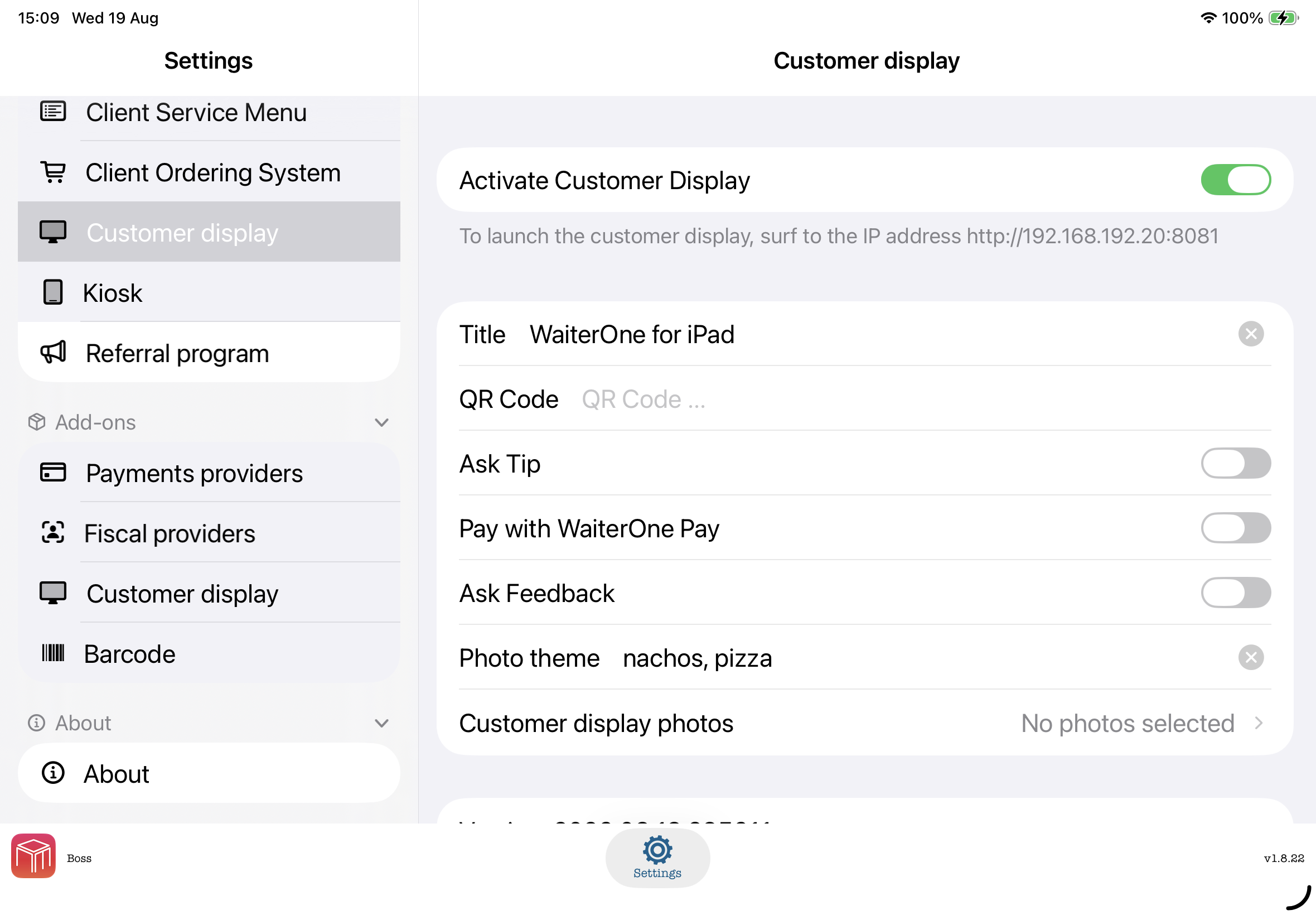
- On the main iPad, open Settings > General > Customer Display and turn on Activate Customer Display.
- On the second device, open
http://IP-ADDRESS:8081in a browser, replacingIP-ADDRESSwith the main iPad's local IP address. Keep that page open. - Optionally set the display Title, QR Code, tip request, and feedback request.
- For online idle photos, enter a subject such as
pizzaorcocktailsin Photo theme. Leaving the field empty restoresfood. Online photos need an internet connection; if they are temporarily unavailable, the display keeps a neutral themed background instead of showing unrelated photos. - For your own idle photos, tap Customer display photos and select up to 20 images in the system picker. WaiterOne receives only the photos you select. The new selection replaces the current set and appears in the order in which you selected it.
Selected photos are stored locally on the main iPad, work without internet access, and take priority over the online Photo theme. Changes appear automatically when the connected display is idle.
Replace, remove, or cancel: Canceling the picker keeps the current set. When photos are selected, tap Customer display photos again to choose Replace Photos or Remove All Photos. Removing the set leaves the originals in Photos and restores the saved online Photo theme.
If an import is incomplete: WaiterOne reports how many photos were added or skipped. If no selected photo can be imported, the existing customer-display photos remain unchanged.
Choose customer-safe photos: The current customer display and its selected photos can be viewed by devices that can open the display address on the same local network. Do not select private or sensitive images.
Use the Customer Display during an order and payment
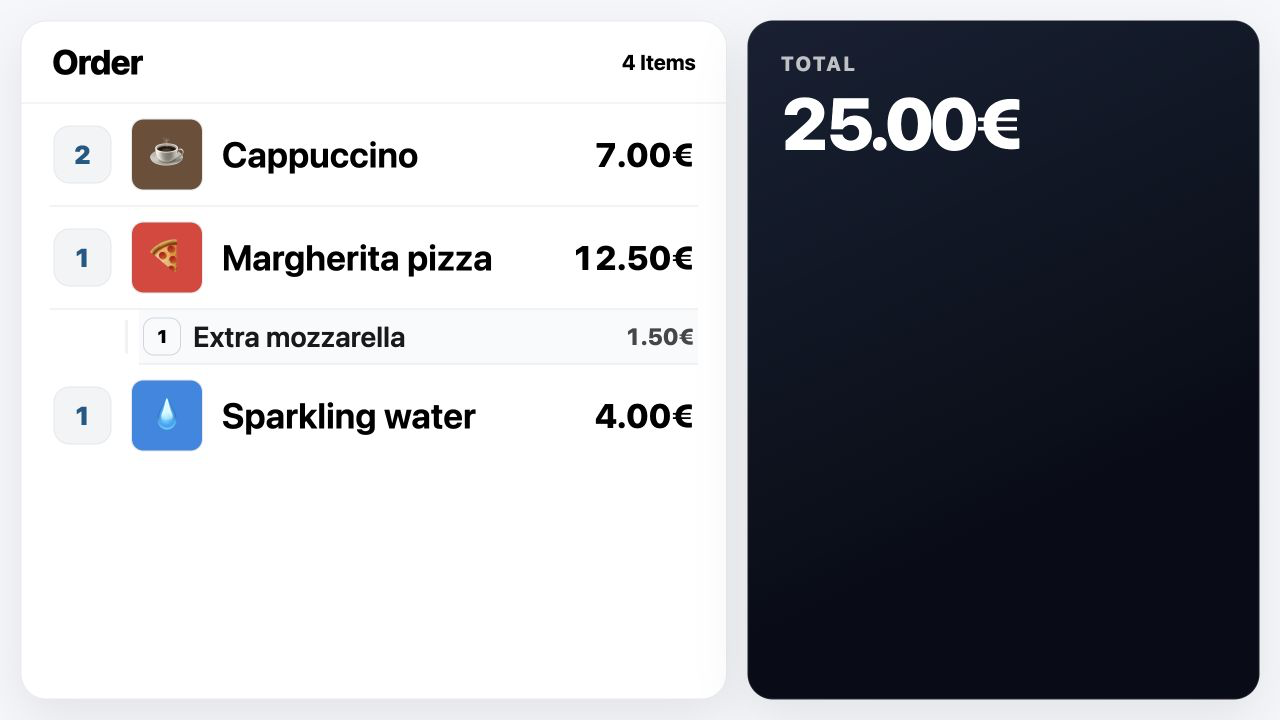
As products are added on the POS, the Customer Display keeps the order visible as a receipt with quantities, product names, modifiers, prices, optional product images, and the current total. Longer orders rotate through pages automatically. The page control shows the current page and lets you pause or resume that rotation.
- Offer a tip when required: When the waiter opens the payment page, the guest can choose No tip, 10%, 15%, 20%, or Custom, then tap Continue. A custom tip can be entered as a percentage or an amount. This step appears when Ask Tip is enabled and one suitable, active tip payment method is configured. If no suitable method is available, the display proceeds directly to the payment status.
- Complete payment on the POS: Saving the tip does not start a payment. The waiter still selects the payment method on the POS. The Customer Display then shows the selected method, processing status, successful payment rows, the amount paid, the amount due, and any change to return. Split payments appear as each payment is accepted.
- Collect optional feedback: After a successful payment, an enabled Ask Feedback setting opens a five-level experience question. The guest can choose a rating or tap Skip. WaiterOne then shows a thank-you message and returns to the idle photo carousel.
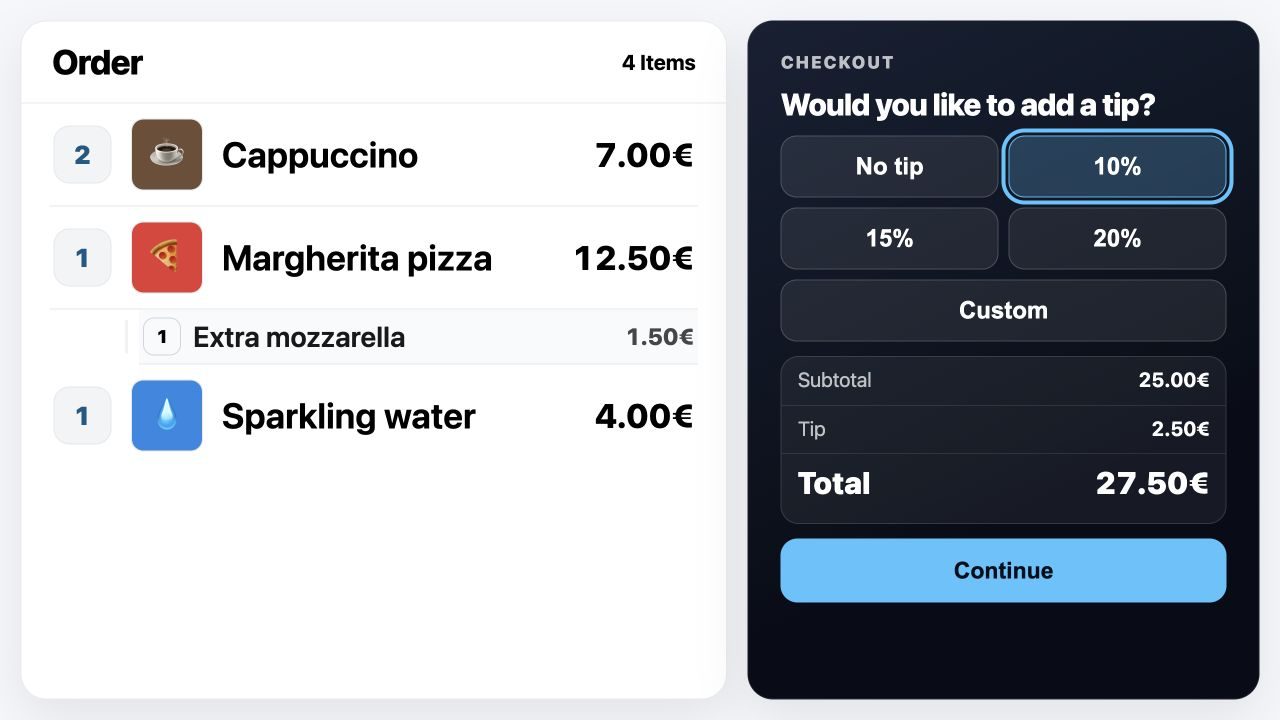
Optional Bancontact Pro QR: This option appears only when Bancontact Pro is activated under Settings > Payment providers. After the tip or No tip is confirmed and the waiter selects Bancontact Pro, the QR code appears in the checkout panel. The configured scan text appears below it, while the order and amounts remain visible. The QR amount matches the remaining amount due, including the confirmed tip.
Showing the QR for a counter sale does not save or send the order. Reopening the same unchanged checkout reuses its payment reference. For tax-exclusive prices, the display lists subtotal, tax, tip, total, paid, and due separately.
If WaiterOne restarts while an unpaid checkout is waiting, the original operator can sign in with an empty basket and choose Resume checkout. If the bill changed or closed, or a late or conflicting payment arrives, staff must review the payment before completing the sale.
Leaving and returning to payment: If the waiter goes back from the payment page to the product pages, the display returns to the normal order view. Opening the payment page again resumes the same checkout without asking twice for an accepted tip.
Reset and error behavior: Logging out, a session timeout, or resetting the POS sends the display back to the idle carousel. A waiting Bancontact Pro checkout can be resumed after an app restart as described above. If a tip, feedback response, or payment cannot be confirmed, follow the message on the display and check the payment before retrying it.
After payment: The completion or feedback message remains visible before the display returns to the idle carousel after 10 seconds.
Before first use: Run a supervised merchant payment, including restart and resume, before offering Customer Display QR payments to guests.
3. Building Your Menu
First installation: regional starter menu
On a new installation, WaiterOne selects a sample menu for the iPad's region when one is available. Available regions depend on the app version. Before first launch, set the iPad region and time zone to your venue's location.
The region determines the sample tax setup, prices, and local products. Where available, the preferred language changes shared menu, modifier, printer, payment, and floorplan names. Local specialties may keep their original names. Changing the iPad language later does not translate an existing business database.
Before taking orders: Review every product and modifier, its price and tax assignment, and the printer and payment settings for your business. SumUp is a sample payment method and still needs its own account setup. Configure your actual printers and check both floorplans. The starter is an editable example, not a verified tax setup for your venue or for takeaway sales.
Starting again: Reset all data removes your working database. Make and verify a backup first. A reset reuses the original starter region; a fresh installation detects the current iPad region. Other regions continue to use the existing starter database.
Products are organized by Pages and positioned on a grid.
Understanding the hierarchy is key: in WaiterOne, we have Pages, Groups, and Buttons. Buttons belong to groups, and buttons are placed on pages. Crucially, buttons can inherit many settings directly from the group they belong to. For example, if a group is configured to print to the kitchen printer, any new button assigned to that group will automatically print to the kitchen as well.
- Create a Page: Set up a page like "Starters", "Mains", or "Drinks".
- Add Products: Enter the item name and assign it a row and column coordinate.
Alternative Methods: You can also add products quickly by double-clicking on an empty space on a Page in the main POS screen, or by managing them directly from the WaiterOne online dashboard (online back office).
- Set Pricing: Input your standard price. You can utilize up to 5 price levels (e.g.,
Standard, Happy Hour, Takeaway).
Misc & Custom Items: Toggle Open Price and Open Text if you want to create a generic button that prompts the staff to manually enter a custom name and price on the fly.
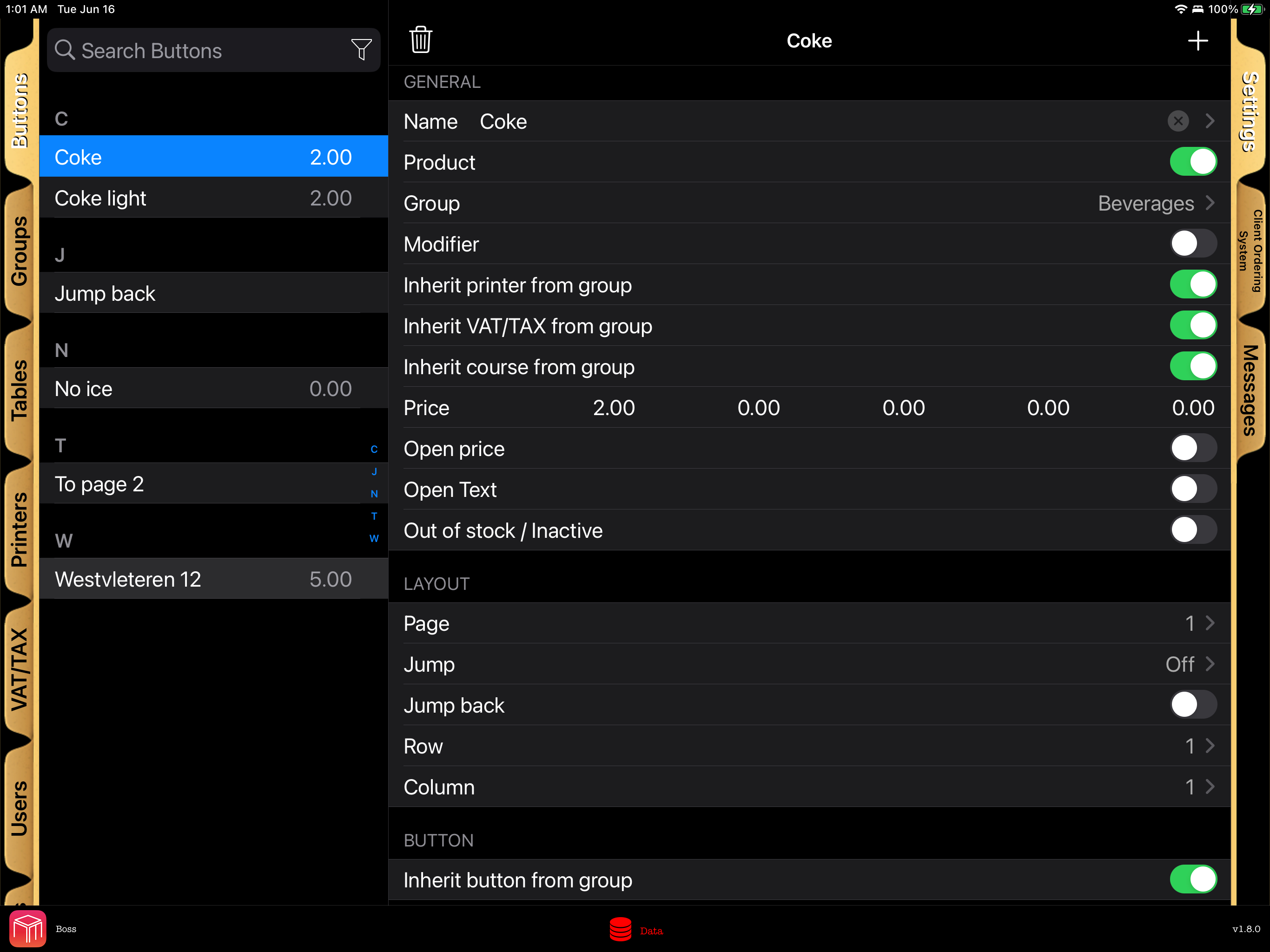
- Add Modifiers: Toggle the Modifier switch for add-ons (e.g., "Rare", "No Ice"). Modifiers must be attached to a standard product to be sold.
- Jump to Page: You can create buttons that jump to other pages to better organize your POS system. WaiterOne also remembers which page you came from, so you can configure buttons to automatically jump back after being selected (e.g., automatically returning to the alcoholic drinks page after choosing a soft drink mixer).
Fixed, Open, and Discount Modifiers
To configure a modifier, open Settings > Data > Buttons, select the button, and enable Modifier. Under Price type, choose:
- Fixed: adds the configured amount for the active price level.
- Open: asks the staff member to enter the amount while ordering.
- Discount: subtracts the configured percentage from the selected product. Enter a percentage for each of the five price levels.
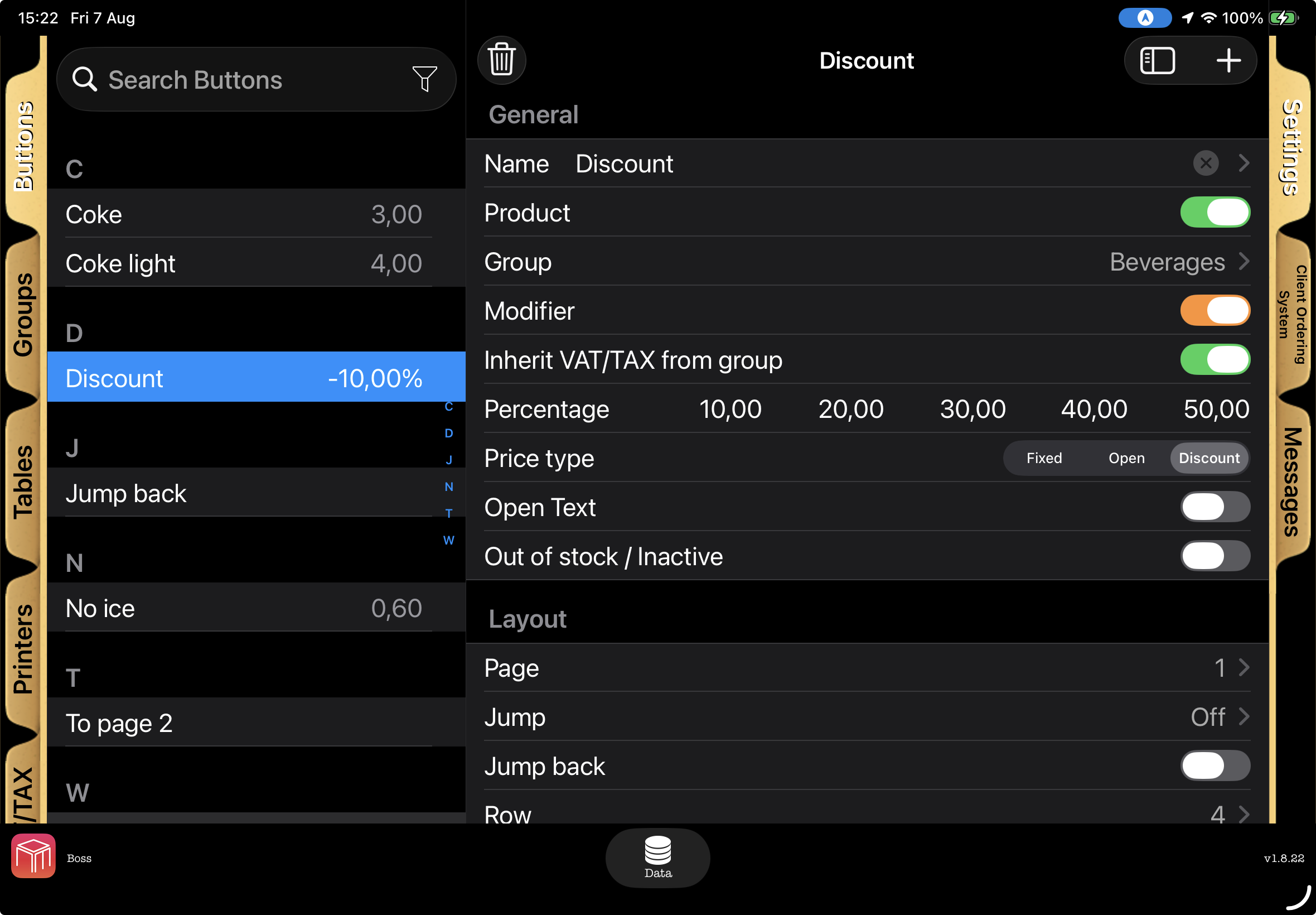
A Discount applies to one product, not the whole bill. Add or select the intended product first, then tap the Discount modifier. If no product is selected, WaiterOne uses the latest product. The discount appears as a negative modifier line, follows the product quantity and VAT/TAX treatment, and does not stack when the same Discount button is tapped again.
Compatibility: Discount modifiers are available in WaiterOne and in supported versions of the standalone Remote app. WaiterOne sends them only when Remote reports support for this calculation, so older Remote versions remain unchanged. After updating Remote, download the buttons again. Customer-ordering and kiosk menus still do not receive Discount modifiers.
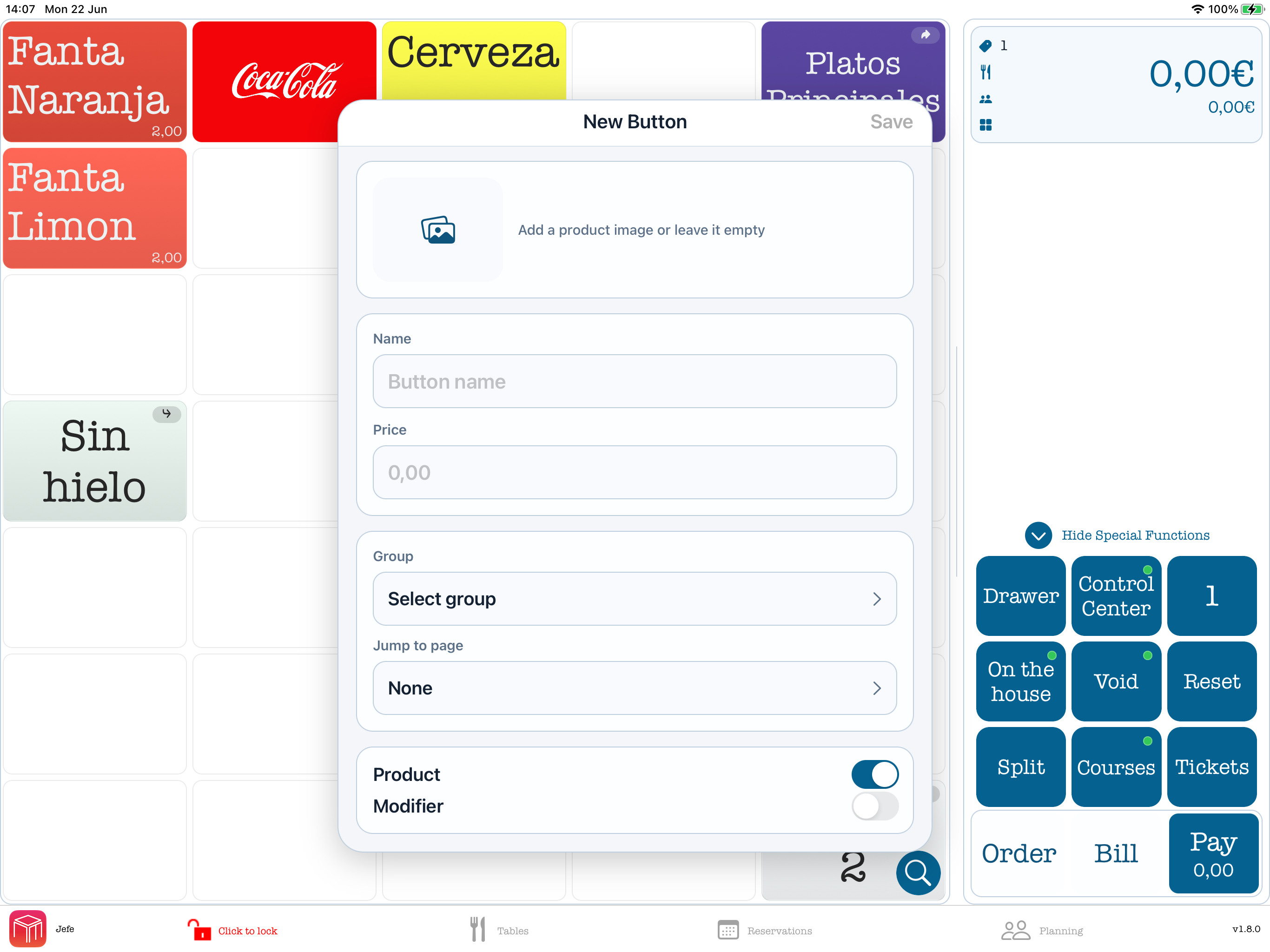
Quick Add from the POS screen: Double-click an empty space on a page to create a new product button directly on that spot. WaiterOne opens the New Button form so you can enter the name, price, group, image, and product/modifier type without calculating grid coordinates first.
WaiterOne Go: Arrange Button Pages
On a WaiterOne Go main device that uses This device as its data source, you can arrange button pages directly from the Order screen. The iPhone and iPad layouts use the same saved row and column positions.
- Create a button in an empty position: Double-tap an empty grid position. Complete the New button form and tap Save. Cancel leaves the position empty. If the position has become occupied before you save, close the editor and double-tap another empty position. After a successful save, WaiterOne Go returns to the button's page and shows the new button.
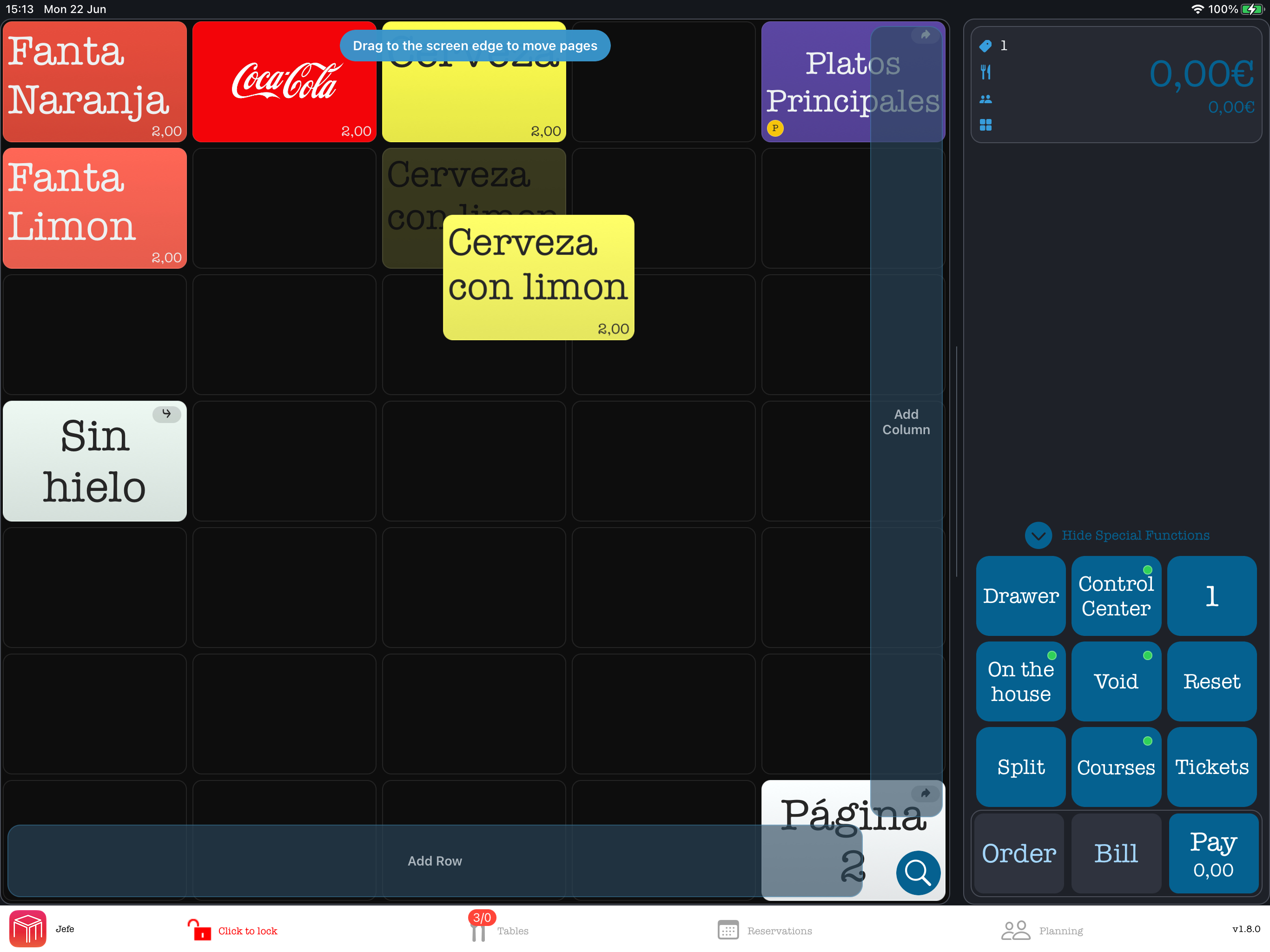
- Move a button: Touch and hold a button without moving until it lifts. Drag it to an empty position and release it. The move is saved immediately. Its original position stays empty, and the other buttons stay where you placed them. Releasing it on an occupied position or outside the grid leaves the layout unchanged.
- Move to another page: Hold the lifted button near the left or right edge. On a wider page, the grid first pans across any remaining columns. Keep holding it at the outer edge until the destination page appears. Drag it to an empty position and release it.
- Change the number of columns: Open the grid menu at the upper left of the Order screen. Under Page layout, use Fewer columns or More columns. Each page remembers its own width from 3 to 24 columns, including empty outer columns. A column containing a button cannot be removed, so move those buttons first.
Scrolling: Wider pages scroll horizontally and settle on a complete column. Pages with more than four rows scroll vertically. When enough vertical space is available at standard text sizes, four complete rows fit above the ticket controls. Shorter layouts and larger text may require more vertical scrolling. When you reach the outer horizontal edge, swipe again to change to the neighboring button page.
Keep intentional gaps: Moving a button leaves its old position empty. WaiterOne Go does not shift other buttons automatically. Double-tap that empty position when you want to create another button there.
Older layouts: If an older layout has a button outside the supported grid, WaiterOne Go keeps it visible. Move it into an empty grid position when convenient.
VoiceOver: Focus an empty grid position and activate it to create a button. Focus a button and use the available Move actions to move it up, down, left, right, or to another page without dragging.
Order, Bill, and Pay in WaiterOne Go
The ticket summary and the three actions remain visible at the bottom of the Order and Ticket screens. The solid red action shows the usual next step: Order for an open ticket, Bill after you use Order, and Pay after you use Bill. Outlined actions are also available. Gray actions cannot be used for the current ticket or payment setup.
CSV Import: Product CSV files can use commas or semicolons. To import a CSV, send the file to the iPad and open it with WaiterOne. To create the correct CSV layout, first export a sample file from Settings > Data > Export. During import, WaiterOne can create missing groups and pages; when a row has a group but no page, the group name is used as the page name. After the import, you can choose to add page jump and return buttons on the imported pages.
Export your products as CSV
On the main WaiterOne iPad, open Settings > Data > Export. Choose a comma or
semicolon as the value separator, tap Export, then choose how to send or save
export.csv:
- Email: Opens an email with the CSV attached. Check the recipients and send it. An email account must be configured on the iPad.
- iCloud: Saves
export.csvin WaiterOne’s iCloud documents. Sign in to iCloud and enable iCloud Drive first. Exporting again replaces the previous file with the same name. Saving the file does not mean that iCloud has finished syncing it to your other devices. - AirDrop: Opens the sharing sheet so you can choose a nearby Apple device. Make sure the receiving device is available for AirDrop.
The CSV is also saved in the iPad’s WaiterOne documents for file sharing. You can open it with a text editor or spreadsheet program.
Keep making backups: A CSV export contains product data. It is not a complete backup of your database and does not replace the Backup function.
Organizing Buttons & Courses
Drag & Drop Organization: In the main POS sales screen, you don't need to manually calculate row and column numbers to rearrange your layout. Touch and hold a button, then drag it to its new location on the grid. You can also stack several buttons on the same grid position when you want to group related items, or drag toward the edge of the page to add an extra row or column.
Kitchen Courses: Courses are a fantastic way to sort ordered products on your kitchen dockets. If you assign items to a "Course" (like Entrée or Main Dish) in the back office, WaiterOne will group them neatly under those specific headings on the printed kitchen ticket, regardless of what order the waitstaff tapped them in! Note: Ensure the Group PLU flag is enabled in your kitchen printer settings for courses to print correctly.
Stock on Product Buttons
In versions with updated stock labels, Stock control names the product inventory settings, while Stock means the quantity currently available. Stock quantities refer to ingredients, beverages and supplies.
On the main iPad, open Stock in the main menu to view stock operations and tracked products. The same outlined box icon appears in the bottom bar.
Manage stock on the main iPad
Open Stock from the main menu or bottom bar. An administrator must give each staff member permission for the stock actions they need. The list shows products with stock tracking enabled.
- To receive a delivery, choose the delivery action, add each delivered product and quantity, then review the entries before saving.
- To count stock, choose the quick count action and enter the quantity physically available for each product. The available quantity excludes items reserved on open orders. Review the count before saving.
- To record waste, select the product, enter the wasted quantity and reason, and review before saving.
- To correct a quantity outside a delivery or count, use the stock adjustment action and review the change before saving.
Open History to check recorded stock movements. If stock changes while you are counting and your count cannot be saved, reopen the count and check the latest available quantity. If a save appears uncertain, check History and the current quantity before trying again.
Receive a delivery on Remote
On Remote, open Stock and choose Receive if your account has permission. Add the delivered products and quantities, optionally enter a free-text note about the delivery, then review and submit. The note is not a delivery-note document. Receive appears only when the connected main iPad supports Remote deliveries.
If confirmation times out, return to the stock list and refresh the quantities before submitting anything again. Ask a manager to check the stock history on the main iPad if the result remains unclear.
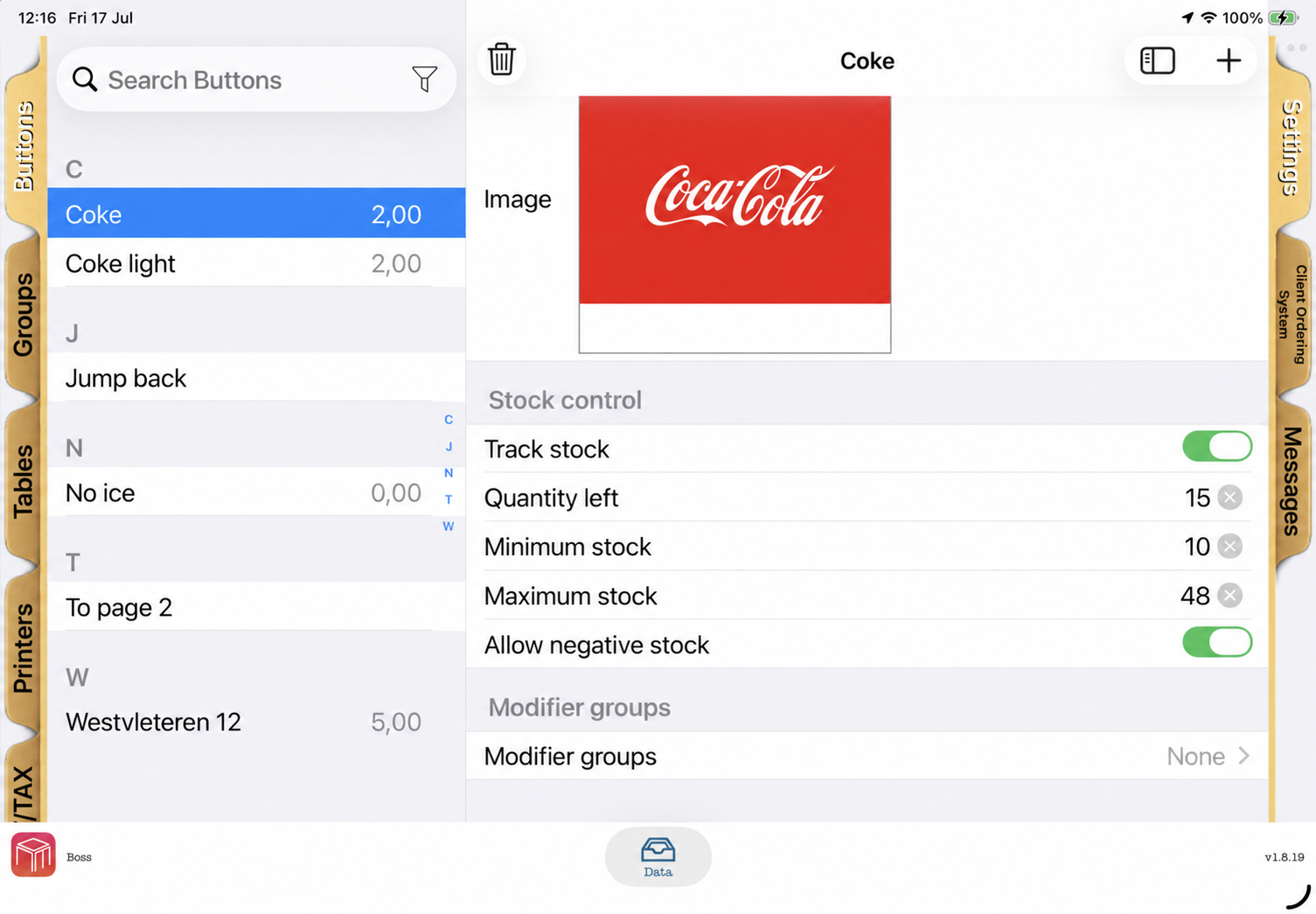
For products where you want to follow availability, open Settings > Data > Buttons and enable Track stock. Enter the Quantity left, optional Minimum stock and Maximum stock, and decide whether the product may go below zero.
For products prepared in KDS, also enable Show in kitchen prep and verify the stock unit. You can set optional Quantity per container and Shelf life (hours) defaults for future labels. Zero or a blank value clears a default; changing a default does not alter existing batches or labels. Give authorized kitchen staff the Receive deliveries permission so they can record production from KDS.
When stock tracking is enabled, WaiterOne shows the remaining quantity as a small badge on the POS product button. Remote devices receive the same stock information when they download buttons, refresh it after login or when the app becomes active again, and reserve stock as soon as a product is selected. This helps prevent two staff members from selling the last available item at the same time.
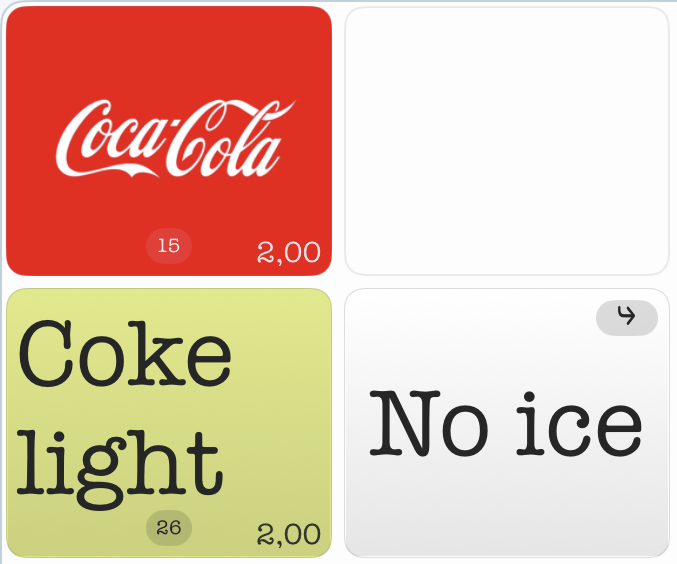
If an unsent ticket is reset or a reserved product is removed, the reserved quantity is returned to stock. When the order is sent, the reservation becomes the sale and the stock stays reduced.
Stock Control in the Back Office
For a faster stock count, sign in to the WaiterOne Back Office and open Menu Editor. Select Pull from iPad first so the Back Office uses the latest menu and stock values. Pulling replaces any unsaved Back Office changes.
Select Stock Control to use the shorter stock list. Filter products with All, Tracked, Low Stock, or Sold Out. For each product, set Track Stock, Current Stock, Minimum, Maximum, and Allow Below Zero. Select Save Stock Changes when finished and wait for Saved to iPad before leaving the page.
Cleaner button layout: Buttons can show small badges for jumps, modifiers, open price/text, and courses. If the screen becomes too busy, go to Settings > General > Buttons and enable Hide button badges. Prices are controlled separately with Add price on buttons.
4. Connecting WaiterOne Remote
To allow your staff to take orders on the floor, sync their iPhones or iPads (e.g., an iPad mini) to the main iPad.
- On the main iPad, go to Settings > WaiterOne Remote and turn on the server.
- Open the WaiterOne Remote app on the staff device.
- Go to Settings > Server within the remote app. The Host field should be filled in automatically, as the remote connects automatically.
- Tap Download. The menu buttons and their current stock values will instantly sync.
- Watch the small TX/RX activity dots on the main iPad and Remote. They appear only while Remote communication is enabled and blink when a request or reply is moving.
Troubleshooting Tips:
- During download, Remote may show statuses such as Contacting WaiterOne, Sent with Sockets, Trying P2P, Trying APN, or Waiting for response. These messages show which communication path is being tried.
- If Remote shows No response from WaiterOne, confirm the Remote server is still on in WaiterOne and that both devices are on the same local network.
- If the download fails, open your main iPad’s iOS Settings, scroll down to WaiterOne, and ensure the Local Network switch is turned ON.
- Set the WaiterOne location permission to Always on the main iPad. That way, the WaiterOne server keeps on running, even in the background.
- WaiterOne also uses the restaurant location for WeatherKit reports, reservations, planning, and license information. If needed, adjust it in Settings > Reservations > Restaurant location.
5. Creating Tables & Floorplans
WaiterOne offers three ways to find and open tables: the Tables / Clients list, the classic table grid (old school), and the visual floorplan (new school). All three work with the same tables and orders. Use the list for quick searching, and choose a grid or visual layout for each room.
1. Tables / Clients List
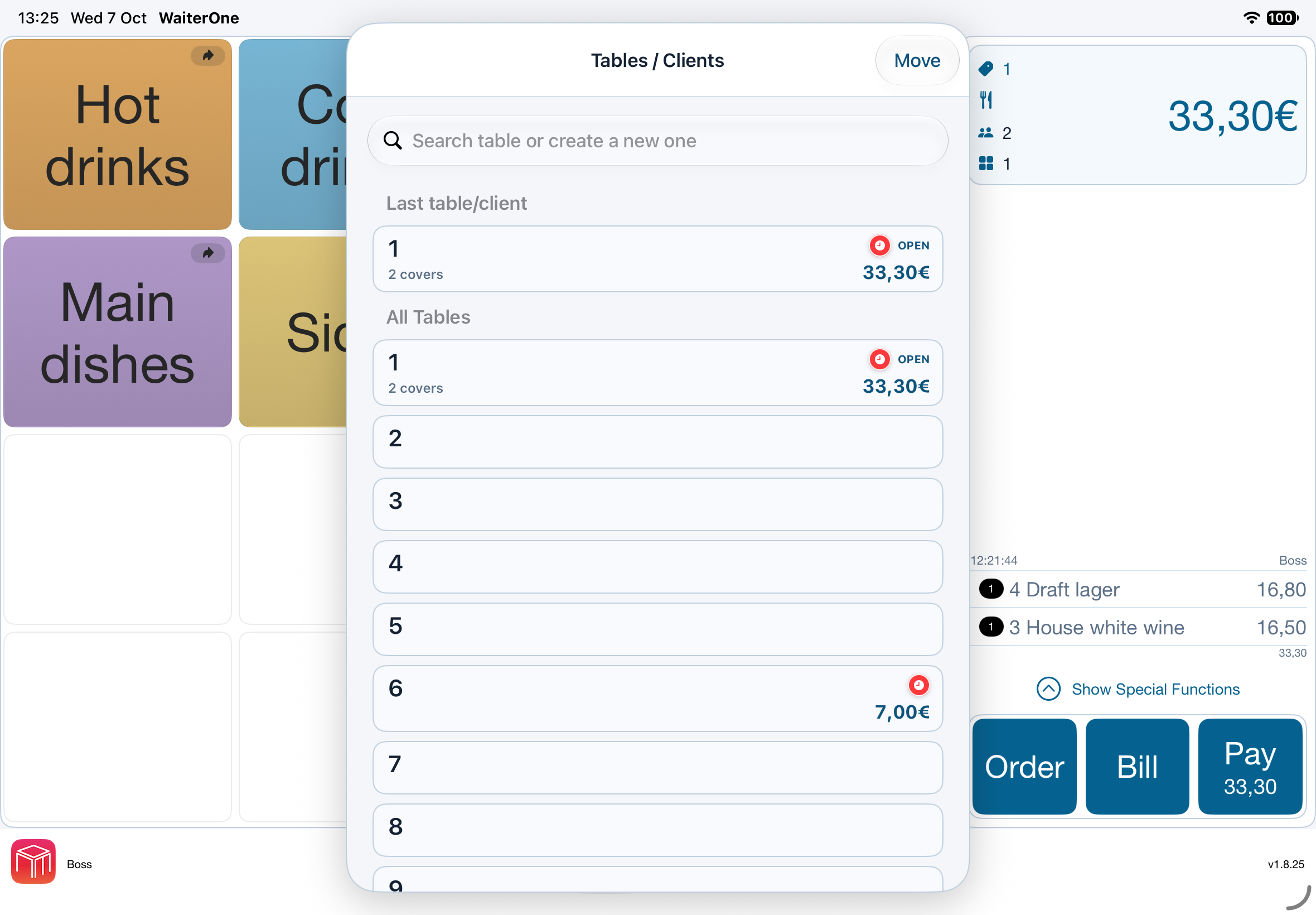
In the main POS screen, tap the total in the upper right corner to open Tables / Clients. Search for a table or client, select an existing entry, or create a new one. Recent tables/clients appear at the top and also remain in the full list. Empty, non-reservable entries can be deleted here when your user has permission.
2. Classic Table Grid (Old School)
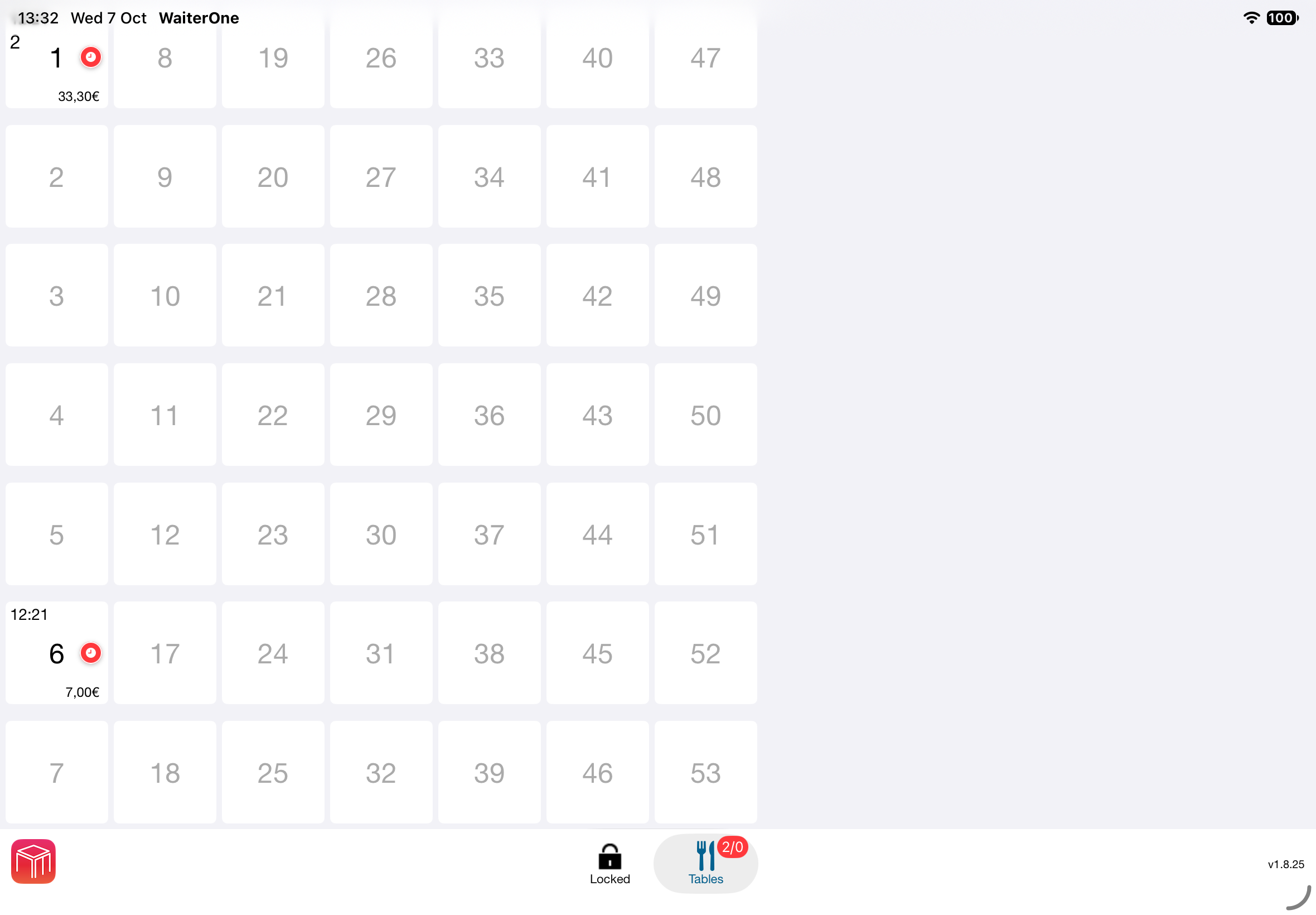
Tap the Tables button to see tables as an ordered grid of square buttons or cubes. Tap a table to open its order. This view emphasizes table names and numbers rather than their physical positions. In Data > Floorplans, choose Old school under Presentation for the room.
3. Visual Floorplan (New School)
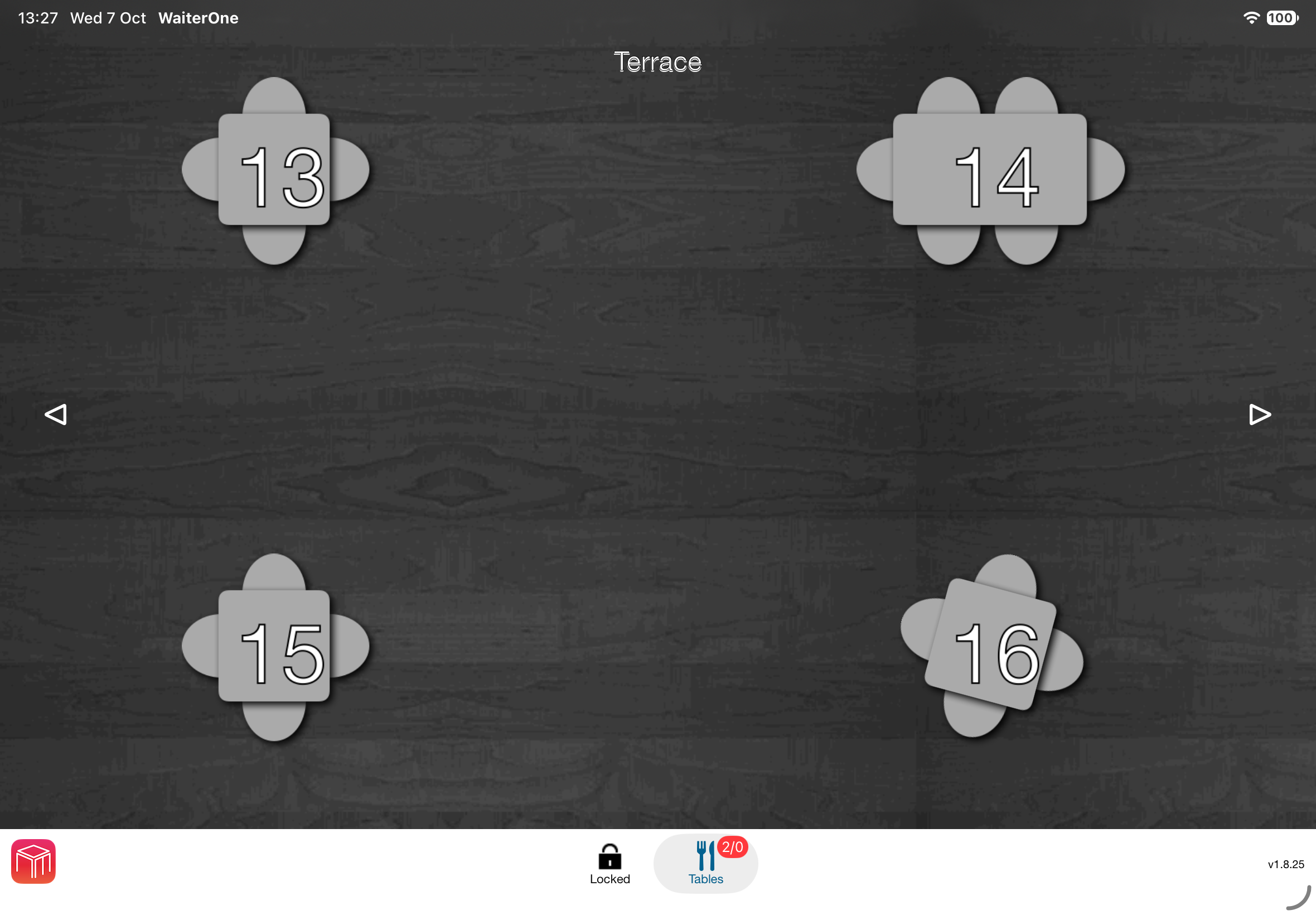
For a layout that resembles your venue, use the visual floorplan. Tables have individual positions, shapes, and seating arrangements. Open this view with the same Tables button; use the arrows to switch rooms when you have more than one.
- Go to Data > Floorplans and create or edit a room or area, such as a dining room or terrace.
- Choose New school under Presentation. You can use different presentations for different rooms.
- Add tables and set their shape and seating capacity. In the floorplan, tap Edit and double-tap where you want to add a table.
- Drag tables into position to match the real layout. Staff can then tap them through Tables in the POS.
Splitting an Open Bill
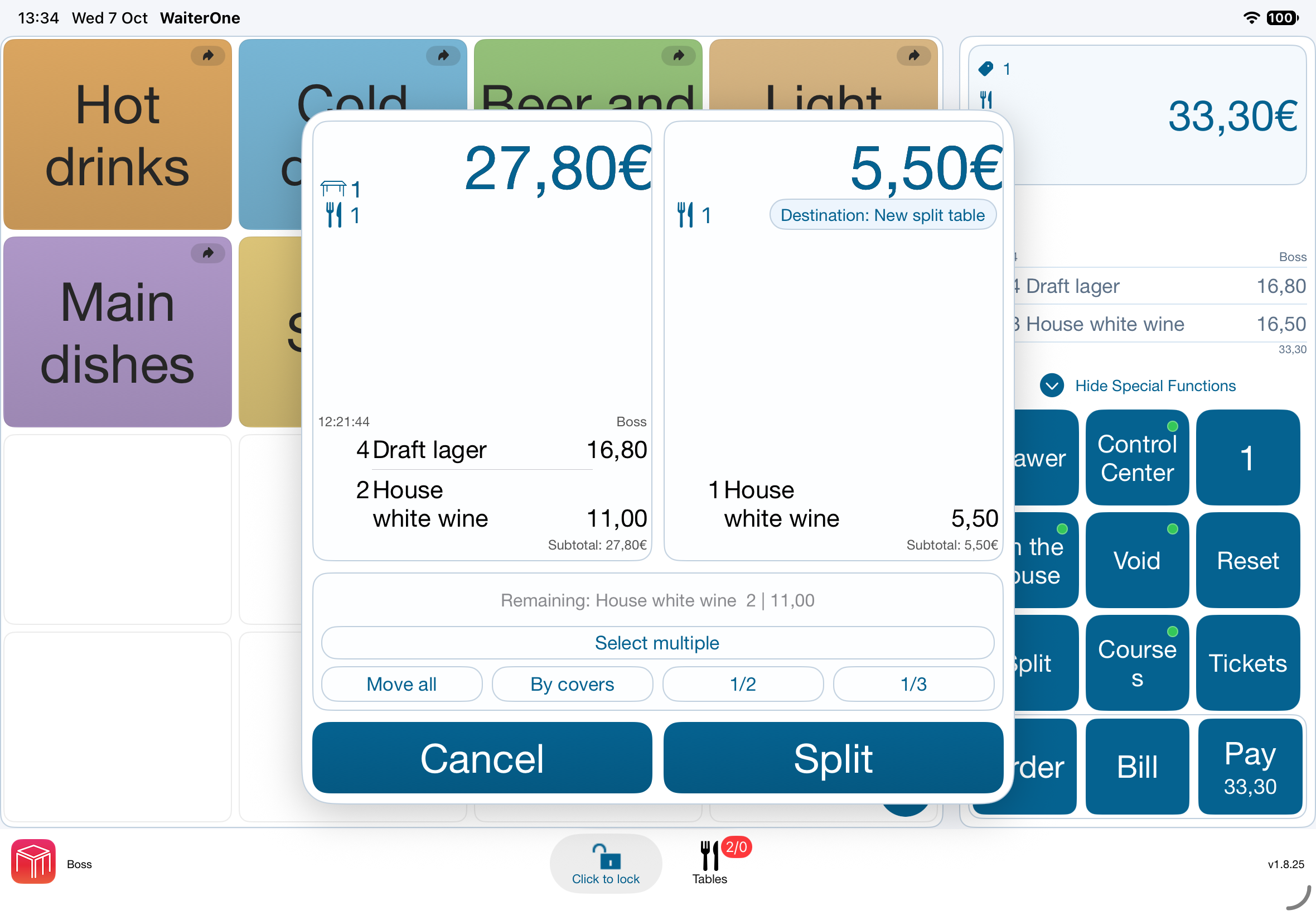
Tapping a product moves one unit between the two bills. Use this screen to allocate products before taking payment.
- Open the source table's order and tap Split.
- Tap a product on the left to move one unit to the bill on the right. Tap its row on the right to return one unit. Check the quantities and subtotals as you work.
- For several rows, tap Select multiple, then tap the rows you want. A light tint and checkmark show the selection. Use Move 1 for one unit from each selected row or Move all for the full selected quantities. Tap Tap to move to return to direct tapping.
- Review both bills. Use the destination button above the right bill if you want to choose another table instead of creating a new split table.
- Tap Split to save. Tap Cancel to leave the stored order unchanged.
Moving an Open Table to Another Table
You can move the entire open order or choose individual products. Start from either of these places:
- Tables or floorplan: Press and hold the occupied source table, then drag it onto the destination and release. For another floorplan, hold it over the left or right arrow until that floorplan appears, then move it away from the arrow and onto the destination.
- POS order screen: Open the source order, tap its total in the upper right to open Tables / Clients, tap Move, then select the destination table.
Choose one of the options in the confirmation:
- Move entire table: Transfer the whole open order. If the destination already has an order, the orders are combined.
- Move selected products: Open the product preview with this destination fixed. Tap a source product to move one unit into the right-hand preview; tap it on the right to return one unit. For batch actions, use Select multiple as described above.
The right-hand preview shows only the products you are moving, not the destination's existing order. Review it, then tap Move products to save and open the destination. Existing destination products are kept, and guest counts stay unchanged. Cancel leaves the products on their original tables.
Example: To move one bottle from a row containing three bottles of wine, tap that row once and confirm Move products. Two bottles remain on the source table and one is added to the destination.
If a table changes while the preview is open, the move is stopped. Close the preview and reopen it to work with the latest order.
Tip: Dragging also works between a table list and a visual floorplan.
Table States
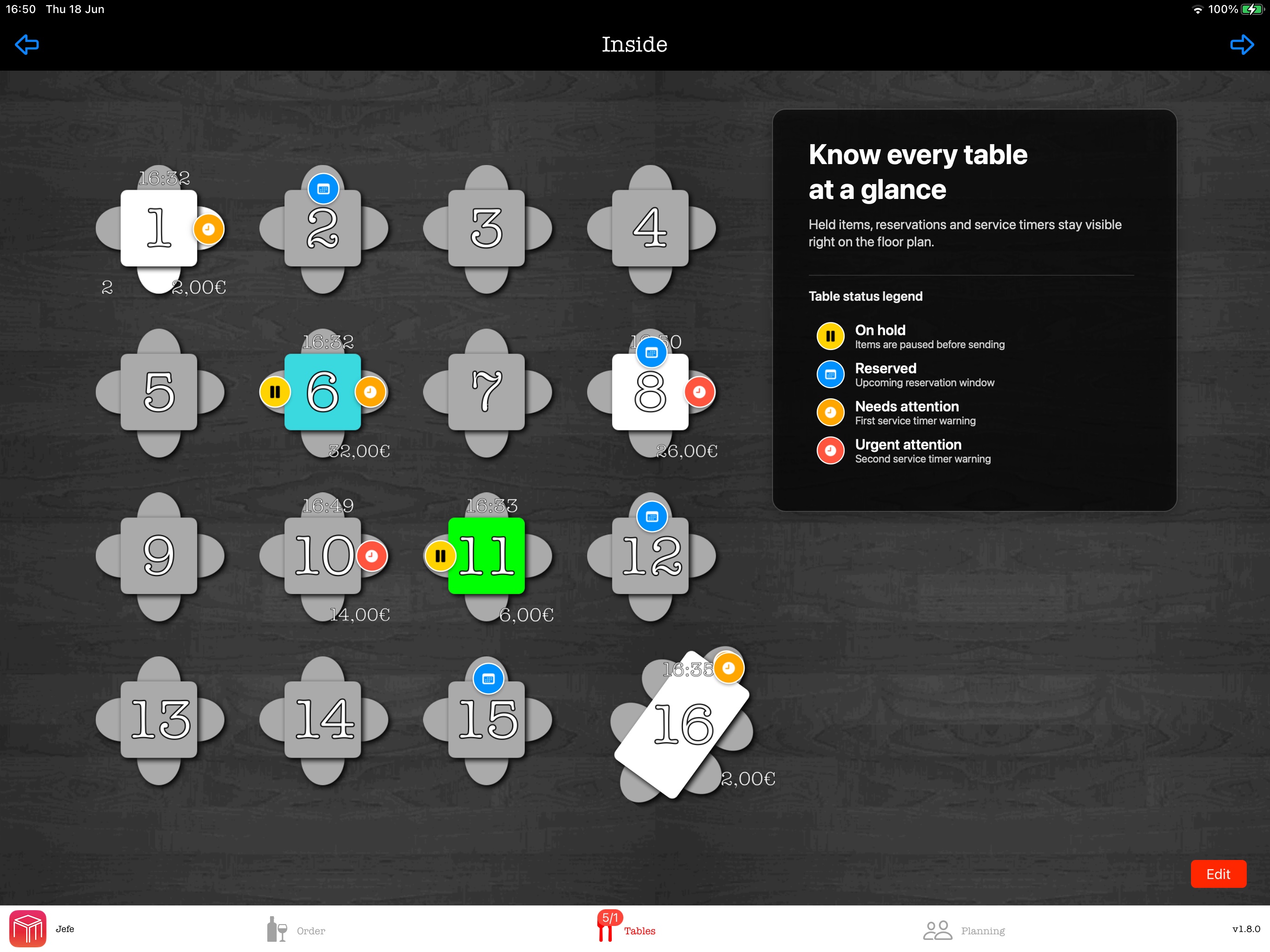
The floorplan shows the status of each table at a glance. WaiterOne can show open totals, service timers, reservations, and hold status directly on the table, so staff can see what needs attention before opening the ticket.
| State | Meaning |
|---|---|
| On hold | Items are paused before being sent, so the table can be resumed later. |
| Reserved | The table has an upcoming reservation window. |
| Needs attention | The first service timer warning is active. |
| Urgent attention | The second service timer warning is active and should be handled quickly. |
Ad-Hoc Tables & Clients
You can also create temporary ad-hoc tables or clients on the fly (for example, for a walk-in or a quick bar tab). These ad-hoc tables will automatically disappear from the system after the order is closed out and paid.
Table-Specific Settings
Tables aren't just for numbering. When setting up tables, you can configure unique rules for specific areas of your venue:
| Setting | Functionality |
|---|---|
| Price Levels | Automatically apply a different price level to specific tables (e.g., assigning a premium price level to a "VIP Area"). |
| Specific Printers | If your venue has tables spread across different physical locations, you can configure particular tables to automatically send their final bills or payment receipts to the printer nearest to them. |
Reservations & Waitlist
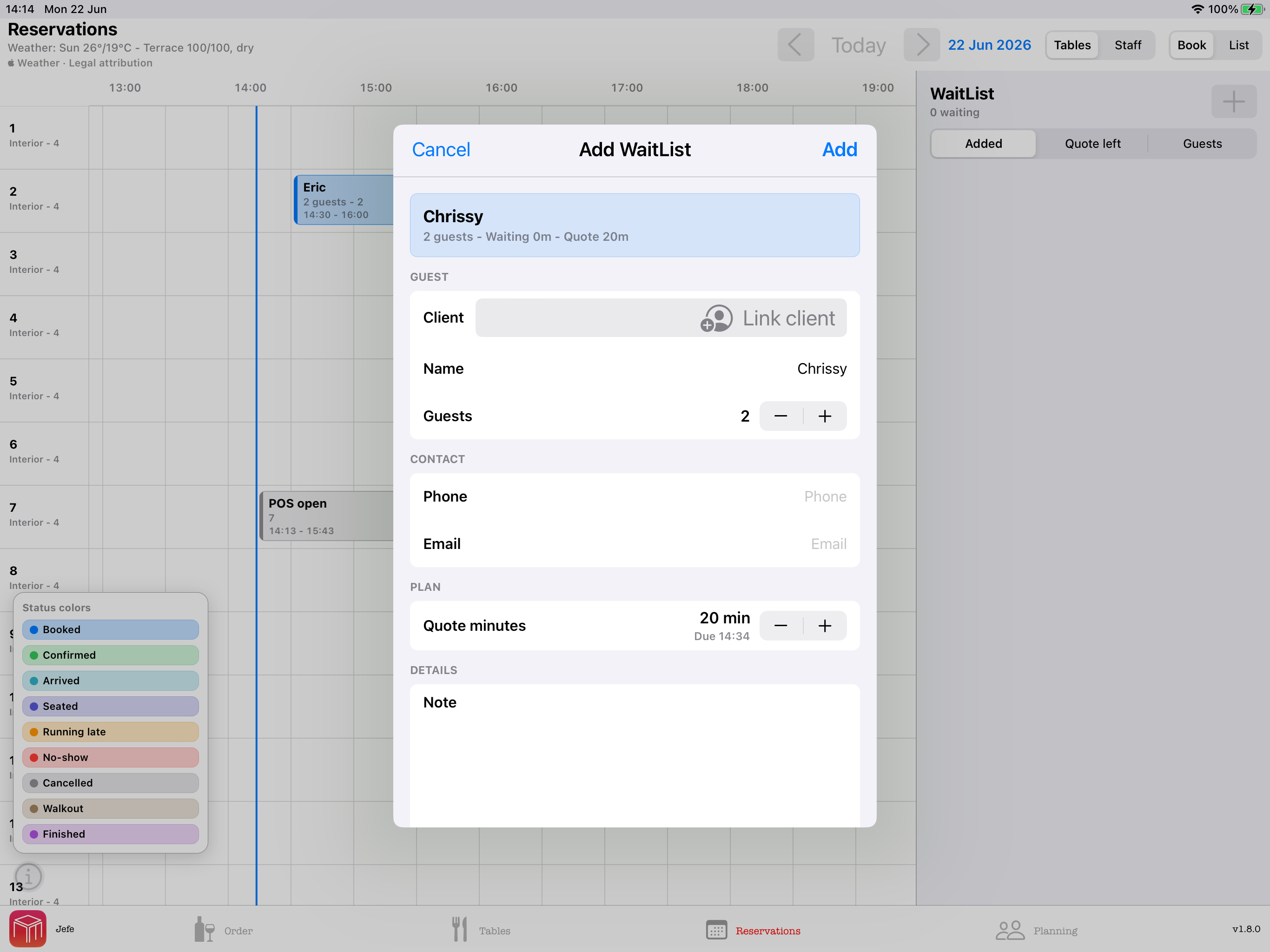
Use the Reservations screen to plan upcoming guests by table and time. The booking form shows the expected end time while you adjust the duration, so staff can see immediately how long the table is blocked.
For walk-ins, add guests to the waitlist with their party size, phone number, quote minutes, and notes. Waitlist entries can be sorted by when they were added, quote time left, or guest count. The quote pill shows whether a guest still has time left or is overdue.
Staff can edit a waitlist entry if the guest changes their phone number, comes back later, or cancels. When a table is ready, tap Seat or drag the waitlist entry into the reservation book to create a reservation at the chosen table and time.
Reservations and waitlist entries can be linked to an existing Client record, or staff can create a new Client directly from the booking details. When a linked guest is seated and paid, the ticket is added to the Client profile so the team can see visits, total spend, average ticket, last visit, and recent tickets from the Clients screen.
Guest messaging: If the iPad is configured to send messages, WaiterOne can prepare a waitlist confirmation in the Messages composer when a phone number is available. Staff can review the text before sending; delivery uses the device's normal Messages/iMessage/SMS setup.
Planning
Use Settings > Planning to open the staff planning tools. Managers can create open shifts, assign waiters, copy schedules, use day templates, publish the visible day, and approve shift pool requests.
Staff users see their own planning view with their shifts, available open shifts, and their pending requests. They can claim open shifts, offer their own shifts to the pool, request trades, and cancel their own pending requests. Editing the schedule itself remains a manager function.
Manager clock-in override: With Enforce enabled, strict planning can block Work In on the local POS. An active manager who sees the schedule warning can tap Continue to clock in or Cancel to stop. An accepted override is recorded for audit. It applies only to clock-in / Work In. Ordinary staff, breaks, Remote, and all other attendance actions remain subject to planning enforcement.
6. Daily Operations: Front of House
Navigating the POS
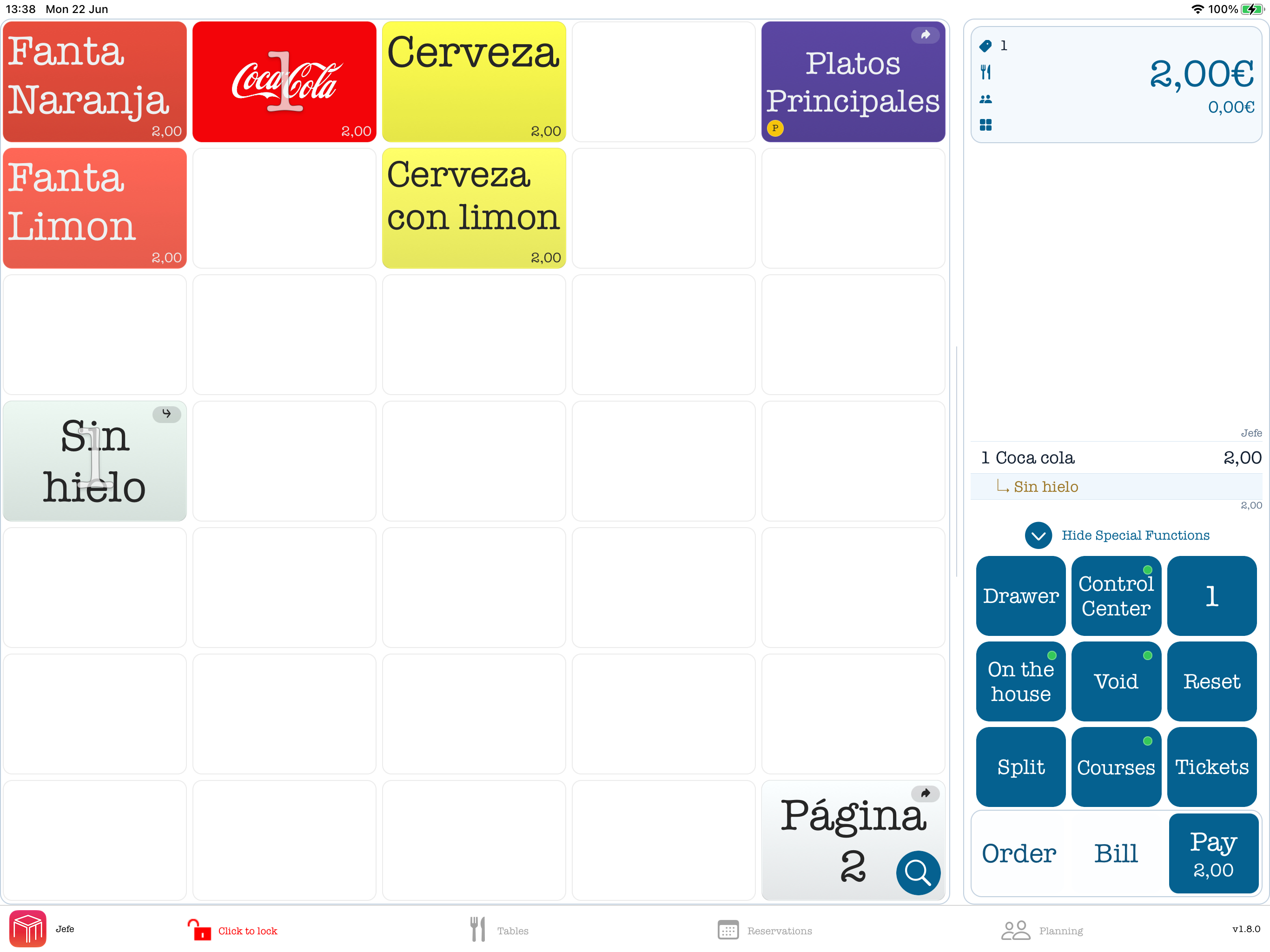
The navigation bar stays visible along the bottom of the POS so staff can move directly between the enabled sections. Depending on your settings and licensed features, it can show Orders, Tables, Reservations, Planning, and COS. The current section is highlighted.
- Employee and menu: The WaiterOne icon and employee name appear on the left. Tap this area to open the left menu. When nobody is logged in, it shows Log in.
- Locking: While working in Orders, the first navigation button shows Click to lock. Tap it again to lock the POS; it then shows Locked until an employee logs in.
- Table status: The red badge on Tables shows open tables followed by tables with a bill, for example 2/1. It updates as table tickets and bills change.
- Print queue: A badge on the Orders button shows pending print jobs and disappears when printing finishes.
- Version: The installed WaiterOne version appears at the right side of the bar, which is useful when contacting support.
Taking an Order
- Tap the Tables or Floorplan screen.
- Select the active table.
- Tap your pages and select the ordered items.
- Select any required modifiers when prompted.
- You will use the three visible main action buttons at the bottom of the screen to process the
transaction:
- Order: Tap this to send the items to their respective preparation stations (e.g., drinks to the bar printer, food to the kitchen printer). The table remains open.
- Bill: When the guests are ready to leave, tap this to print their check/receipt. The table remains open until payment is processed.
- Pay: Tap this when you are taking payment.
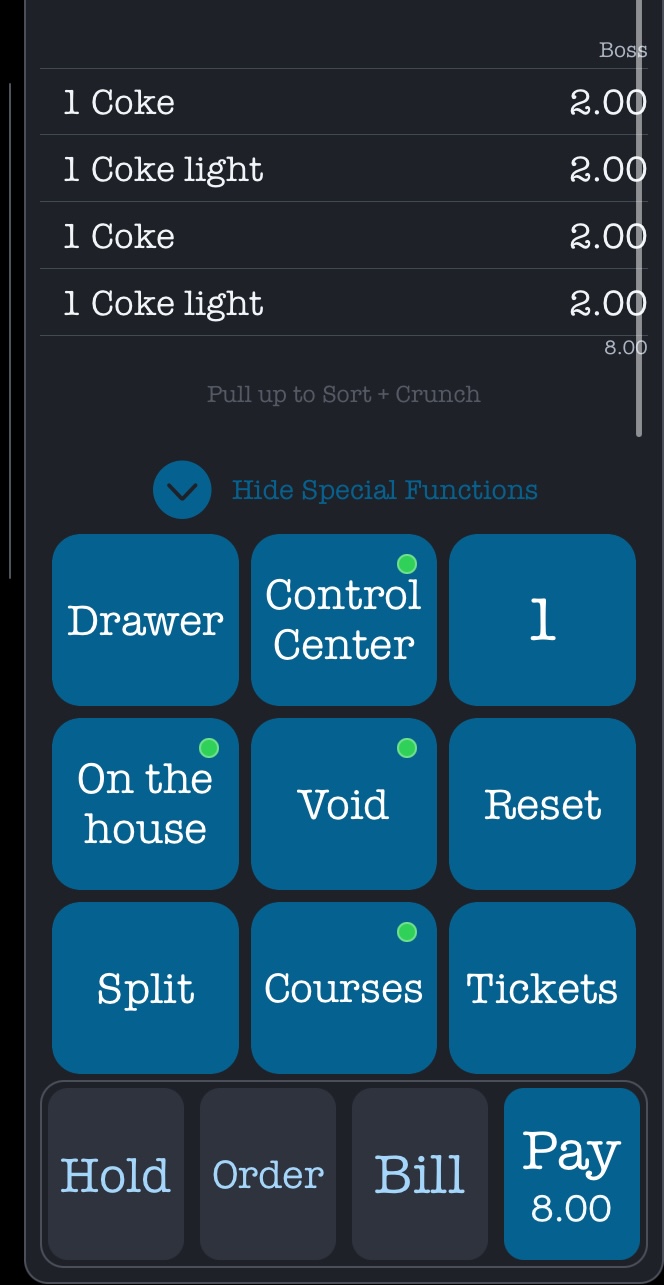
Hidden Hold: The Hold button is hidden at the OBP buttons (Order, Bill and Pay). Swipe the OBP buttons to the right to reveal Hold, then tap Hold to temporarily park the current ticket, so you can return to it later or serve another table/client first.
Ticket screen: Swipe up on the ticket screen to crunch the ticket and combine the same products into one line.
Special Functions: Swipe Special Functions to the right to show more special functions. Swipe it to the left to show the numeric keyboard.
Note: The Order and Bill buttons are only selectable if a table or client has been selected. If no table/client is selected (e.g., for a quick counter service order), you can omit Order and Bill entirely and skip straight to pressing Pay.
Processing Payments
- Select the table that is ready to leave.
- Tap the Pay button.
- Choose the payment method (Cash, Card, Gift Voucher).
- The cash drawer will trigger, the receipt will print, and the table will reset and close for the next guests.
Tipping
Tips are handled as a separate payment method. To create a tip button, go to Data > Payments, add a payment method for tips, set its value to 1, and activate the Tip option. During payment, staff can then select that tip method for the extra amount the guest wants to leave.
SumUp: When you work with SumUp, tipping can be fully configured from Settings > Payment Providers > SumUp.
Tendering: If you use tendering, enable it in Settings > General > Tendering and choose a normal default payment method such as Cash. Do not set Card or Tip as the default payment method.
Card refunds with PinVandaag Worldline
Before first use: These instructions describe the card-refund feature in WaiterOne 1.8.24. Ask your payment supplier to confirm that refunds are enabled for your Worldline terminal and merchant account, and arrange a supervised terminal test before using it with customers.
Use this on the main WaiterOne iPad for a full refund of a saved EUR receipt paid entirely with one PinVandaag payment. Your user must be a manager or have Retour/Void permission, and training mode must be off. PinVandaag must be configured for Worldline. CCV, partial or mixed payments, tips, discounts, surcharges, invoices and fiscal receipts or fiscal configurations are not supported. The original receipt must not already have been reversed, and its VAT settings must still match.
- Check that the card has not already been refunded manually or through another system. Finish any current payment or queued operation.
- Open the original receipt in Tickets and select Void.
- Check the amount and choose Void and refund to card. If this option is unavailable, the receipt or configuration is not eligible.
- Ask the customer to follow the instructions on the terminal. Wait for WaiterOne to confirm both the card refund and the recorded void.
- Check the separate correction receipt and the refund reference. The correction does not add refund items to an unrelated open order.
Void only creates a POS correction but does not return money to the card. Do not use it as a substitute for a card refund. Cancel closes the confirmation without starting a refund.
If the result is unclear or recording is interrupted
Do not issue another refund, including directly on the terminal, until the first result has been checked. A connection error does not prove that no money was returned. Restarting WaiterOne does not remove an unresolved refund.
- Check refund status: Open the same original receipt and select Void again. When available, this action checks the existing refund without sending another payout. Uncertain refunds appear in Control Center with the original ticket number and date; ordinary PinVandaag payments on that terminal remain blocked until the outcome is resolved.
- No reliable transaction reference: Contact PinVandaag and WaiterOne support to check the terminal history. Do not retry the refund or clear its records yourself.
- Refund succeeded, correction not yet submitted: Use Complete void when offered. This records the correction without refunding the card again.
- Correction needs checking: Contact support to reconcile the refund and POS records. Do not refund or void the receipt again. If WaiterOne instead confirms that the refund was declined, cancelled or failed, no automatic void is recorded; review that result before deliberately starting a new attempt.
On the House and returns on ticket lines
Remote 1.5.17 or later also supports these line taps on iPhone and iPad. Changing On the House on sent lines requires the matching support in WaiterOne 1.8.24 or later. See the Remote manual.
From WaiterOne 1.8.24, the main iPad POS lets you apply these special functions to unsent items and to items already sent with Order or Bill while the table is still open. Your user needs the corresponding permission.
- Make an item complimentary: Activate On the House in Special Functions, then tap the item line. Its price becomes zero and the totals are updated. This changes only the tapped line; apply the function separately to any priced modifiers you also want to offer for free.
- Restore the price: Activate On the House again and tap the same complimentary line. WaiterOne restores its saved price and updates the totals. This also works after leaving and reopening the table.
- Return an already sent item: Activate Retour/Void and tap the sent item line. A separate negative return line is added to the current order, together with negative copies of its attached modifiers. The original sent lines remain unchanged. Review the return lines before sending the order or printing the bill.
- Void an unsent item: Activate Retour/Void and tap the unsent line to change its sign. Activate the function and tap it again to change it back.
Older complimentary items: Automatic price restoration is available only for items made complimentary with this update or a later version. Items made complimentary before 1.8.24 have no saved original price, so tapping them cannot restore it automatically.
7. End of Day & Reports
Closing out your day is just as important as opening it.
| Task / Feature | Description |
|---|---|
| X/Z Readings | Print a daily summary directly from the iPad.
|
| Cloud Dashboard | Log into your WaiterOne online dashboard via any web browser at www.waiterone.net/dashboard to view detailed analytics. The dashboard is fully responsive, so you can easily access it on your smartphone too! The dashboard is automatically synced with the iPad, but you can also force live reports to be pushed manually! You can manage your dashboard password from the iPad by going to Settings > Cloud Dashboard. |
| Automatic Backups | WaiterOne securely backs up your database. If your internet drops during the day, transactions are stored locally and instantly pushed to the cloud once you are back online. |
Tips report: In Reports, open the Payments reports and choose Tips to print a tips-only overview. It shows each user with cash, card, other, and total tips, so you can pay out staff tips without showing full sales or payment totals.
Foreign-currency payments in reports
For a payment method configured in a foreign currency, payment reports show the conversion as Tendered @ Rate = Received. Tendered is the original amount in the payment currency, Rate is the exchange rate saved with the transaction, and Received is the converted amount in your base currency. For example, 10.75 @ 0.93 = 10.00.
The conversion appears in Day > Payments, Payments, Payments detail, Payments small, and the payment lines in Sales. Rows with different saved rates remain separate. The Payments - Tendered summary combines the rows for each payment method and totals the original tendered amounts across those rates.
Refunds, voids, and reversed tips are shown with the appropriate positive or negative sign and are netted into the report totals.
Payment setup: Create a separate payment method for each accepted currency. Tender totals are kept per payment method, so do not reuse one payment method for another currency if you need historical totals to remain clear.
CSV exports: day-payments.csv, payments.csv, and
payments-detail.csv keep their existing fields and append tendered and
exchange_rate.
Fiscal system proof
If your business uses exactly one active Epson TSE or Fiskaly fiscal system, you can create a PDF that documents the currently connected fiscal setup.
- Open Reports > Other reports.
- Select Fiscal system proof. WaiterOne loads the current details from the active fiscal system.
- Review the business and POS information, TSE serial number, provider, status and certification information.
- Print the proof, use AirPrint or send the PDF by email.
Requirements: Exactly one supported fiscal system must be active. An Epson TSE must be reachable, initialized and not busy with a receipt. Fiskaly requires an initialized LIVE system and internet access. The proof only includes the active provider.
Date filters in Tickets and Reports
In WaiterOne 1.8.24, Tickets contains saved sales records. Choose Reorder, then tap a record to order its products again. Dates and times on this screen follow the WaiterOne app language and the device’s regional settings.
Open Tickets from Special Functions to find earlier sales. Choose Day for one business day or Range for a period. In Range mode, tap From and choose the first day, then tap To and choose the last day. Set the From and To times when needed, then tap Apply.
Blue dots mark calendar days that contain sales. Use the arrows to move one month at a time, or tap the month and year heading to choose them directly. The same marked calendar appears when selecting From or To in Reports.
Business day start: Calendar sales days follow the start-of-day hour configured in WaiterOne. A sale after midnight but before that hour belongs to the previous business day.
Browse Sales and Orders reports across days
In Reports, choose different days for From and To, then open Sales or Orders. The report shows totals for the entire period and a breakdown by business day. Use the left and right arrows at the top to browse detail pages of up to 100 rows. The totals still cover the entire period when you change pages.
Tap the email button to prepare the complete report for the selected period, including details from every page. For Sales, the attachments contain the full sales and transaction data. Print and AirPrint use the page currently shown. Preparing an email for a very large period may take longer.
Reports overview: The overview is available to manager users. To hide it for a venue, go to Settings > General > Results and turn off Show reports overview. When it is hidden, Reports opens with no report selected until staff choose one.
Overview charts and weekly activity
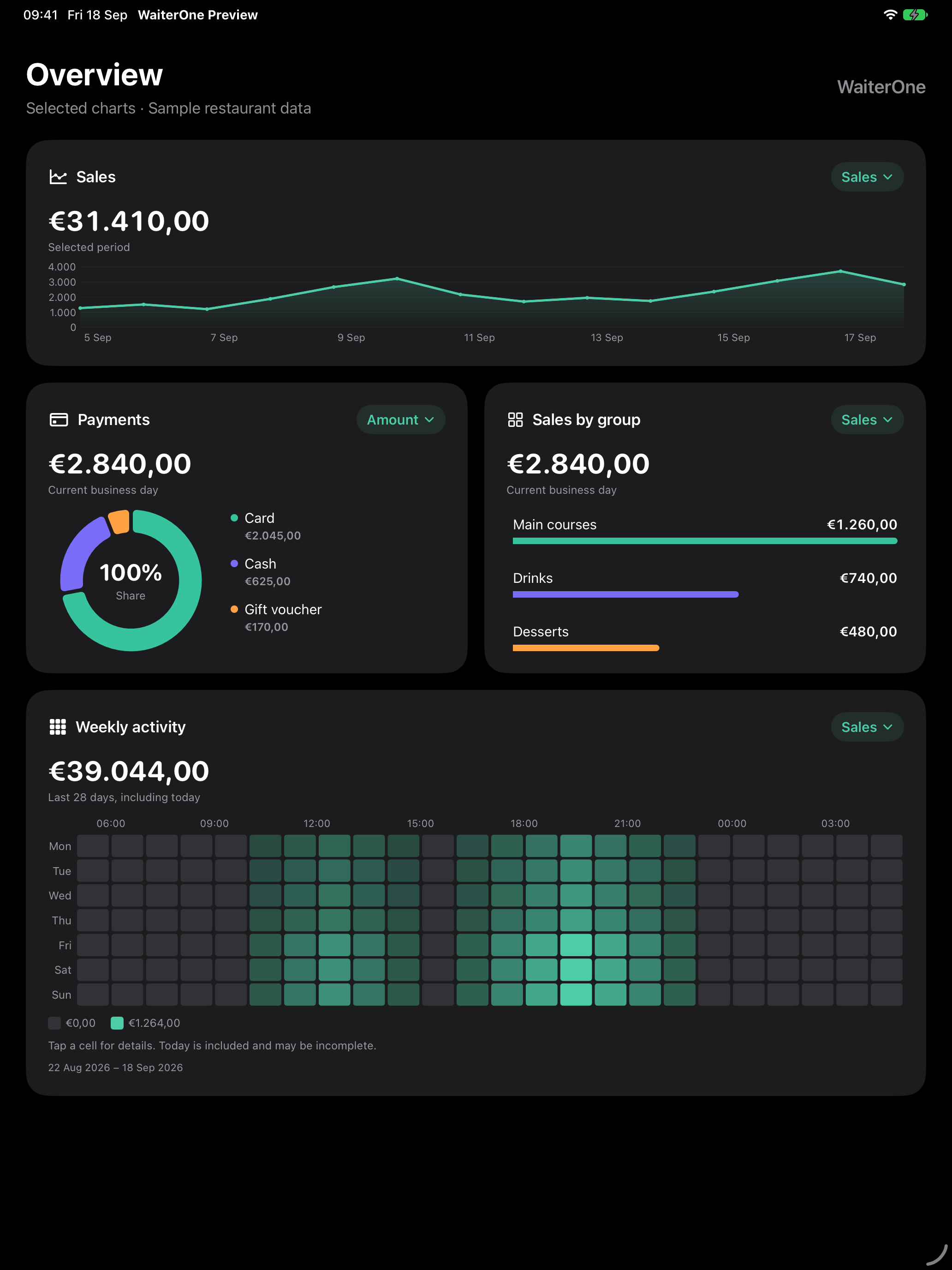
In WaiterOne 1.8.24, Overview combines sales, payments, product groups, users, tax and void/complimentary sales charts with a weekday-and-hour heatmap. The charts support Light and Dark Mode.
- Open Reports and choose Overview when it is available to your user.
- Use the menu at the top right of a chart to choose a metric, such as sales, items or ticket count. Available choices depend on the chart.
- Tap a bar, a point on the timeline, a donut segment or its legend to inspect a category. User, product-group and payment charts use their configured colors.
- Scroll to Weekly activity. Choose Sales or Tickets, then tap a cell to see the value for that business weekday and one-hour interval.
28-day totals, including today
The heatmap adds today and the previous 27 business days. Each cell is a total, not an average: Friday at 12:00 combines that hour across four Fridays. Today is included and may be incomplete. Return to Overview after recording sales to refresh the figures.
Rows represent business weekdays. Columns start at the configured business-day hour and minute, and wrap past midnight. For example, with a 06:30 start, the first interval is 06:30–07:30; sales before 06:30 belong to the previous business day. The period shown below the chart identifies the included dates.
For the heatmap, each saved ticket is counted once per business day and assigned, together with its sales total, to its first recorded sales hour. Ordering or billing activity charts can therefore show a different hourly pattern.
Stronger green indicates a larger positive total; neutral cells are zero. Orange indicates a negative sales total, for example after returns. The legend gives the scale. No activity yet means the selected metric has no non-zero data; Chart unavailable means the data could not be read.
Payment and tax charts use donuts on iPadOS 17 or later when all values are non-negative. Older supported iPadOS versions, or data containing negative values, use bars instead.
8. The WaiterOne Ecosystem
WaiterOne is more than just a POS tablet; it’s a fully integrated suite of applications designed to modernize every touchpoint of your venue.
| Application | What It Does |
|---|---|
| WaiterOne Remote | The core staff handheld app for iPhones and iPads. Allows waitstaff to take tableside orders and fire them directly to the kitchen or bar. |
| KDS (Kitchen Display System) | Replaces paper tickets in the kitchen. Orders appear digitally on a screen, allowing kitchen staff to bump tickets as they are prepared. |
| WaiterOne Kiosk | A self-service ordering application. Guests can browse the menu, customize their orders, and pay directly on a full-blown 27-inch screen. |
| COS (Client Ordering System) | A web-based ordering platform (Scan-to-Order). Guests scan a QR code at their table to view the menu and order directly from their own smartphones. |
| Reservations | A built-in table management and booking system to handle upcoming guest reservations directly within the WaiterOne interface. |
| CSM (Client Service Menu) | A QR code to be scanned at the table so clients can order themselves, do reservations, and pay the bill. |
| Digital Signage | Running on screens throughout your business with data and pricing coming directly from the iPad. |